Bitta Sheets · Part 24 · 2:43 · YouTube
Business Central Sheets Setup, Permissions and Role Center
What this video covers
Set up Bitta Sheets for a finance team: the switches in Studio Setup, the five permission sets, and where people find their workbooks every day.
Sheets needs no SUPER: it runs with each user's own Business Central permissions.
On the role center, show a workbook and a financial report in their own parts, and present a workbook full screen for a meeting.
Transcript
Dana's new analysts start on Monday. Sheets needs to be ready for them. Here's how to set up Bitta Sheets, give people access, and find it every day.
Sheets needs no SUPER. It runs with each user's own Business Central permissions. In Studio Setup, open the Sheets FastTab. Enable Sheets turns workbooks on for people with the Sheets permission sets.
Allow AL Formulas and Allow SQL Formulas control the AL and SQL functions in cells. Both only read data. Allow Write-Back lets data tables write changes back to Business Central, after a review.
Max. Rows per Data Table is a safety limit, and Formula Batch Size sets how many function calls go to the server at once. Turn any of these off, and Sheets tells people the feature is turned off
in Studio Setup. Access comes from five permission sets of its own. Sheets User is for everyone who works in workbooks, and Sheets Admin for the people who look after them.
Admins also get an All Workbooks view and can delete any workbook, but they still can't open one that isn't shared with them. The other three cover financial report metrics, the metrics admin, and the Financial Report API.
Every Sheets page is in Tell Me. Type workbook for Workbooks, Sheet Templates and Sheet Distributions. Recipient lists, the metrics library and the Financial Report API setup are one search away too.
On the role center, the Sheets and Finance menu holds them all, from Workbooks to New Consolidation. Activities count your workbooks, the ones shared with you, your favorites and templates.
New Workbook and Import from Excel start one. The actions add New Workbook and New Consolidation. Further down, choose a workbook for My Workbook. It shows right here, with live data.
My Financial Report shows a financial report, here the balance sheet. Recent Workbooks and Favorite Workbooks take you back to what you use most. Present Workbook shows My Workbook full screen and read-only,
for a meeting, and the data can still be refreshed. Set this up once when you roll out Sheets, and check the permission sets whenever someone joins finance. Next, the last tutorial: financial metrics and the Financial Report API.
More Bitta Sheets videos
All videos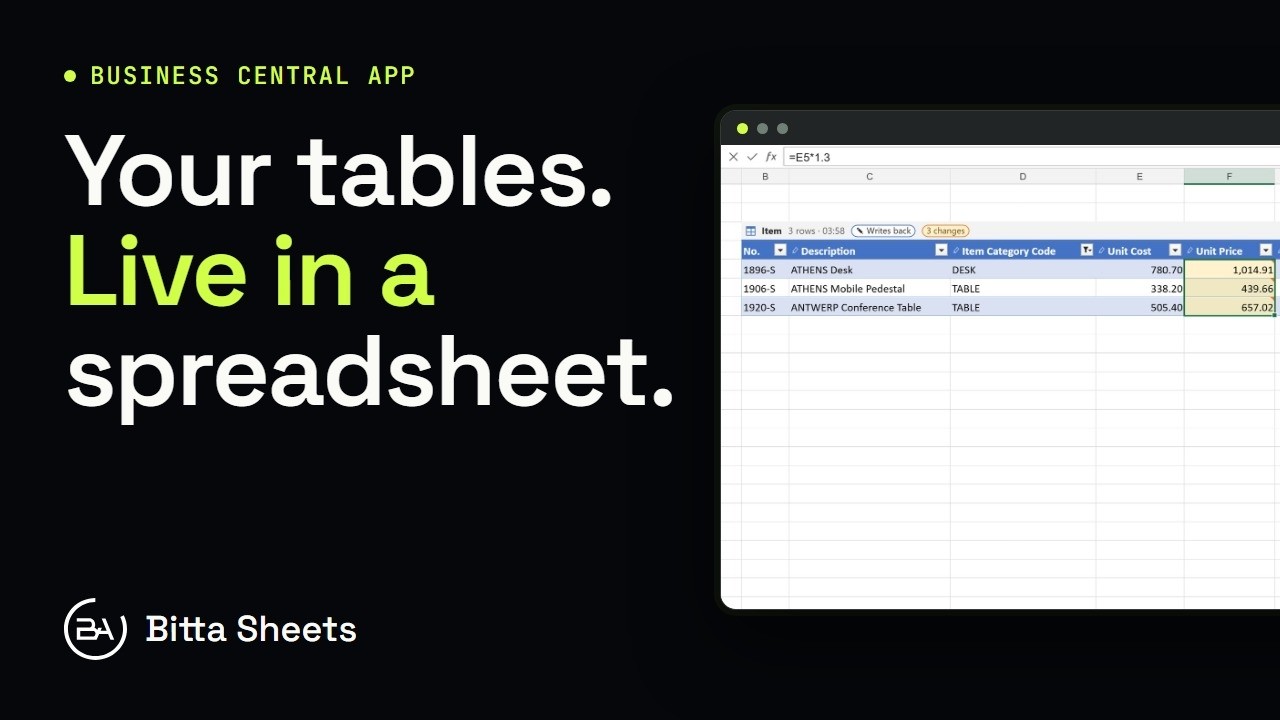 1:18OverviewEdit Business Central Tables Live in a Spreadsheet
 2:08Part 1Edit Business Central Data in an Excel-Style Sheet
 3:08Part 2Business Central Bulk Update Without Export and Import
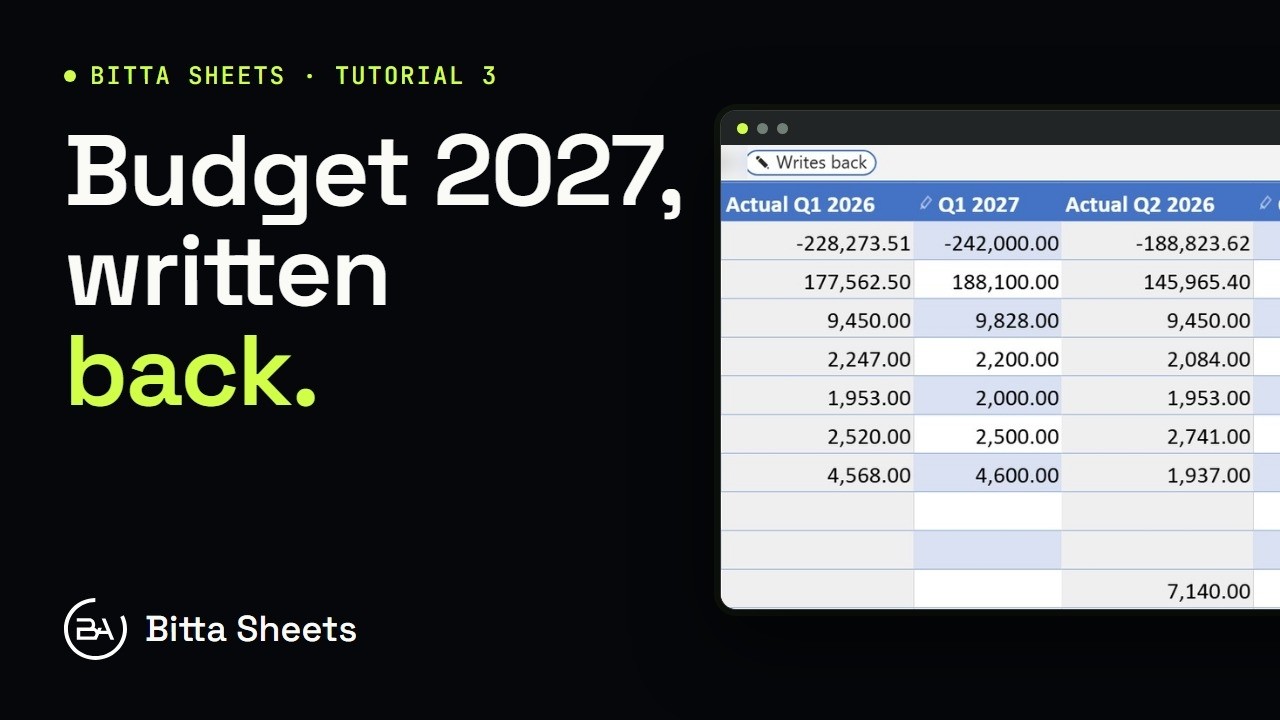 2:50Part 3Business Central Budget in a Spreadsheet, Written Back Live
 2:35Part 4Business Central Budget Entry by Department
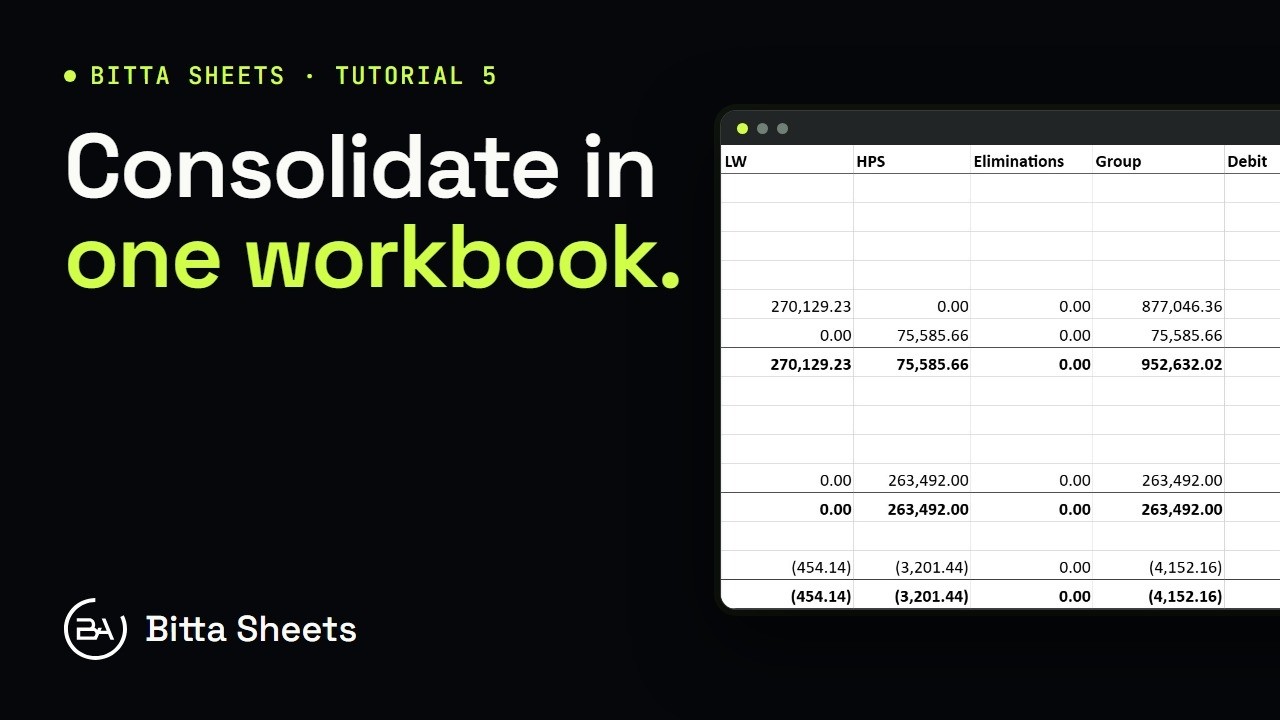 2:56Part 5Business Central Consolidation: Companies and Account Mapping