Guide
Bitta Sheets guide
Follow the chapters in order, from the first install to everyday use. Each page tells you what to open in Business Central and what to fill in.
Showing all steps
- 01How Bitta Sheets worksBitta Sheets brings spreadsheets with live data into Business Central: financial reports, budgets with write-back, consolidation, templates and distribution.
- 02Licensing and activationWhat stays free in Bitta Sheets, what Pro and Finance add, and how an administrator enters an activation code or pastes a license.
- 03Setup, permissions and the role centerSet up Bitta Sheets in Business Central: the Studio Setup switches, the five permission sets, and where people find their workbooks on the role center.
- No steps for this role in this part of the guide. Choose All to see every step.
- 01Workbooks and live dataCreate workbooks in Business Central or import them from Excel, organize them in folders, then insert live data tables, reports and charts and refresh them.
- 02Live table editingPut a Business Central table in a sheet, type changes in the pencil columns, check them with Business Central validation, then apply them with an audit log.
- 03Bulk changes with a formulaChange many Business Central records at once: fill one formula down a data table, let Business Central check every row, then apply the changes that pass.
- 04Spreadsheet essentialsFormat, sort, filter, find and replace in a Bitta Sheets workbook, with Business Central number formats, frozen headers, zoom, full screen and shortcuts.
- 05Pivot tables on live dataSummarize any Business Central table in a pivot table: rows, columns and values with totals, quarters, top N with Others, and a drill-down on every number.
- 06Charts and KPI cardsAdd charts and KPI cards to a Business Central workbook: chart live data or cells, click a column to drill down, and show a KPI as progress to its target.
- 07Cell controls and input rulesAdd checkboxes, drop-down lists and date pickers to a Business Central sheet, set rules for what people type, and highlight values with conditional formatting.
- 08Document and journal linesEdit the lines of Business Central sales and purchase documents and general journals in a sheet: change, add and delete lines, checked like the page.
- 09Organize workbooks and sheetsOrganize Business Central workbooks in Bitta Sheets with folders, views, favorites and properties, and insert, rename, color, hide or delete sheets.
- 10BC functions and filtersBuild a Business Central month-end pack in Bitta Sheets with live BC functions, one month filter, a data table that follows it, and a refresh.
- 11Series, queries and report dataBring more Business Central data into a sheet with Bitta Sheets: date and FlowField series, a query result, and a report dataset with its request page.
- 12Connected tables and SQLJoin related Business Central tables in a sheet without SQL, run SELECT queries with cell parameters, and put SQL and AL formulas in a single cell.
- No steps for this role in this part of the guide. Choose All to see every step.
- 01Financial reports and budgetsRun Business Central financial reports in a sheet by period and department, drill down to the G/L entries, and change a G/L budget and write it back.
- 02Consolidate companiesConsolidate group companies in one Business Central workbook: set up companies, period and group chart, map accounts, handle ownership, rates and eliminations.
- 03Budgets with write-backOpen a G/L budget in a sheet, start from last year's actuals, change it by a percentage, type amounts and formulas, then check and write it back to the budget.
- 04Metrics and the Financial Report APIUse Business Central financial report metrics in reports and workbooks, and set up the Financial Report API with addresses and snapshots for Power BI or Excel.
- No steps for this role in this part of the guide. Choose All to see every step.
- 01TemplatesStart Business Central workbooks from templates that ask for a customer or a period, use the six standard templates, and save any workbook as your own template.
- 02Print and PDFPrint a Business Central workbook or save it as PDF from the sheet: add a logo, set the print area, paper, scaling and repeated rows, and a header and footer.
- 03Send workbooks on a scheduleEmail a workbook as PDF or Excel on a schedule: set the recipients, the burst mode and the email, preview the file, then schedule it through the job queue.
- 04Share, present and export workbooksShare Business Central workbooks in Bitta Sheets at the right access level, present them read-only in a meeting, export to Excel, and move them as packages.
- No steps for this role in this part of the guide. Choose All to see every step.
Videos
Watch the full demo
Or watch it one step at a time:
 2:08Part 1Edit Business Central Data in an Excel-Style Sheet
 3:08Part 2Business Central Bulk Update Without Export and Import
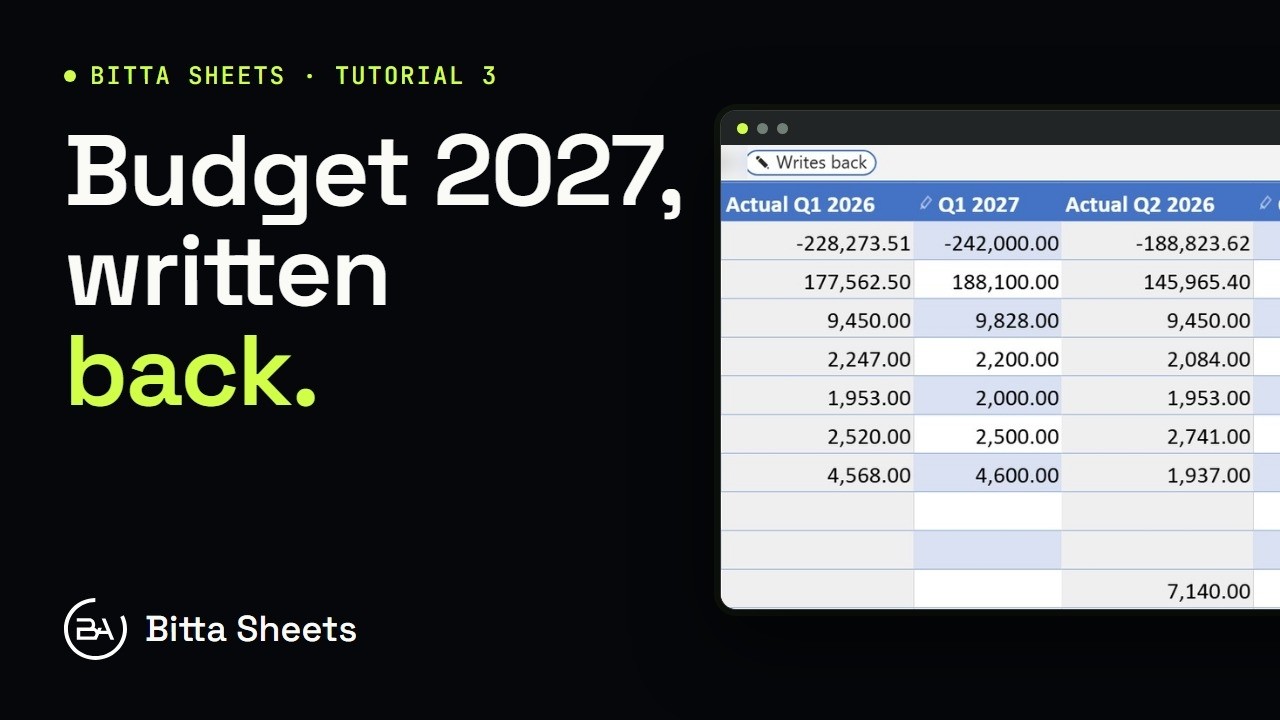 2:50Part 3Business Central Budget in a Spreadsheet, Written Back Live
 2:35Part 4Business Central Budget Entry by Department
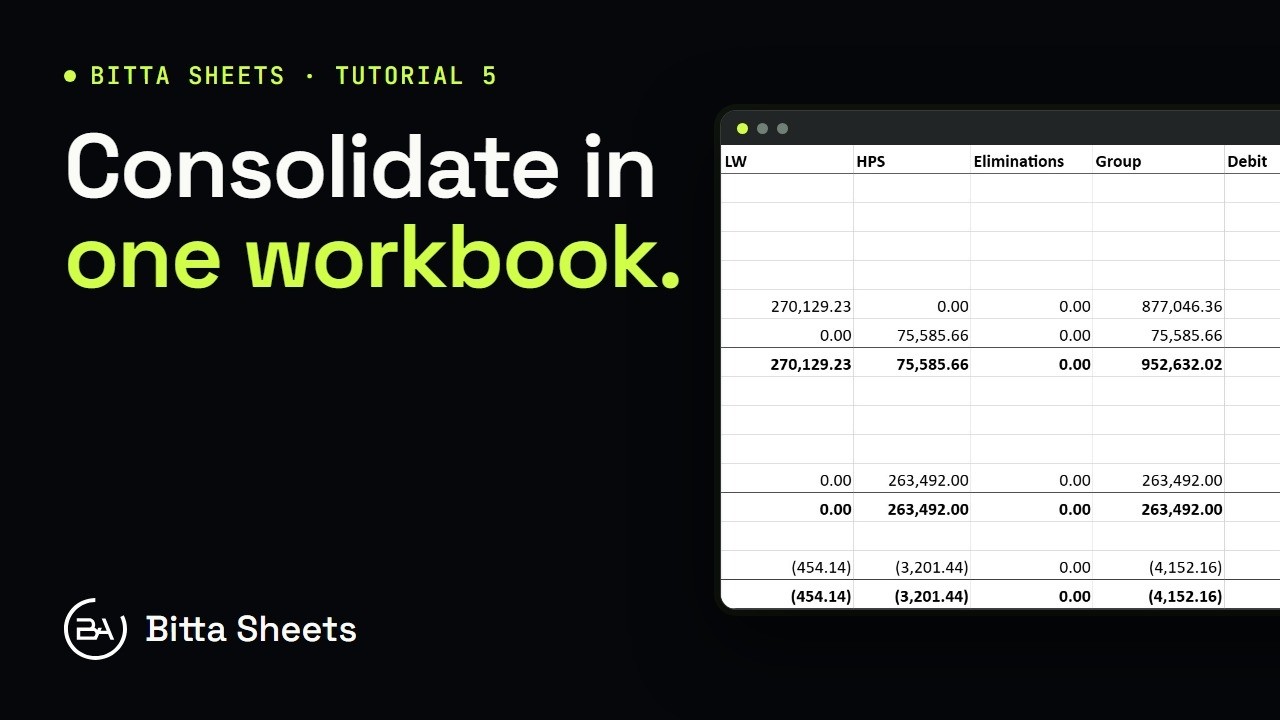 2:56Part 5Business Central Consolidation: Companies and Account Mapping
 2:29Part 6Business Central Consolidation: Ownership, Rates and Minority Interest
 2:38Part 7Business Central Intercompany Eliminations for Consolidation
 2:21Part 8Business Central Consolidation: Review, Post, Reverse
 2:38Part 11Business Central Import from Excel: Get Started with Workbooks
 2:19Part 12Business Central Pivot Tables on Live Data
 1:51Part 13Business Central KPI Dashboard with Live Charts
 2:27Part 14Business Central Schedule Report Email: Send Workbooks Automatically
 2:24Part 15Print Business Central Reports to PDF from a Sheet
 2:47Part 16Business Central Report Templates You Reuse
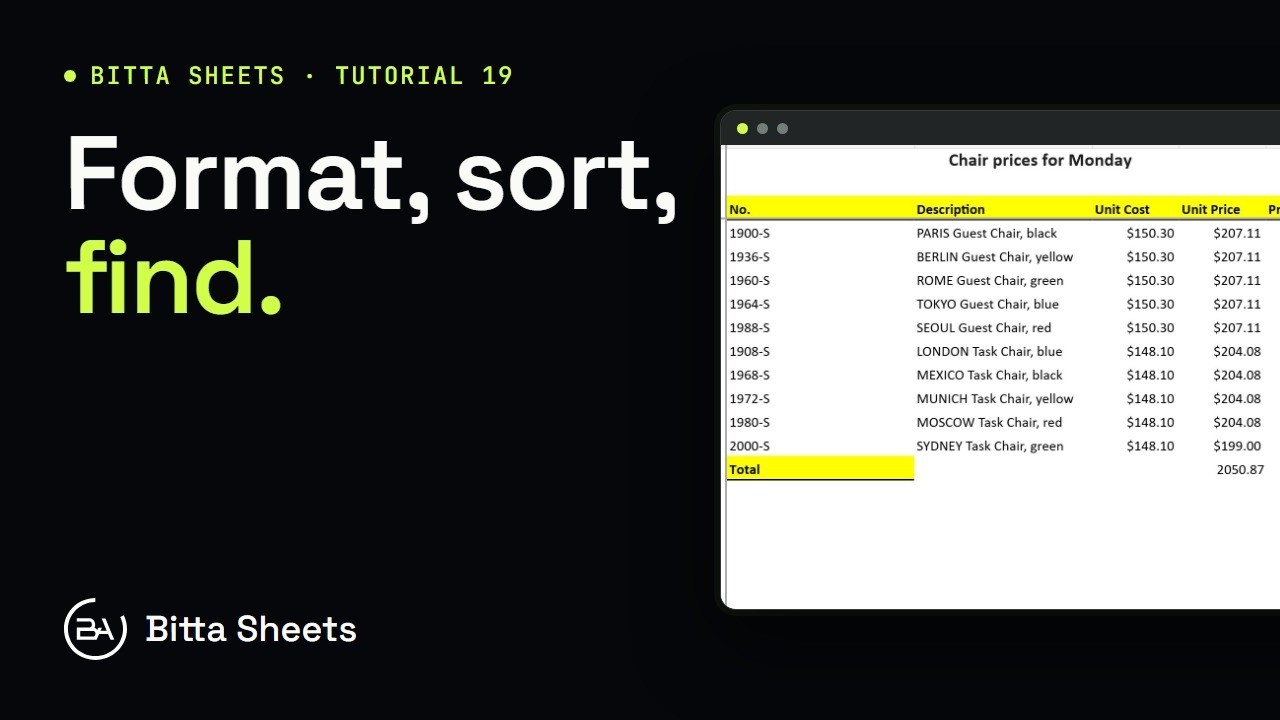 3:43Part 19Business Central Spreadsheet Basics: Formatting, Sort and Find
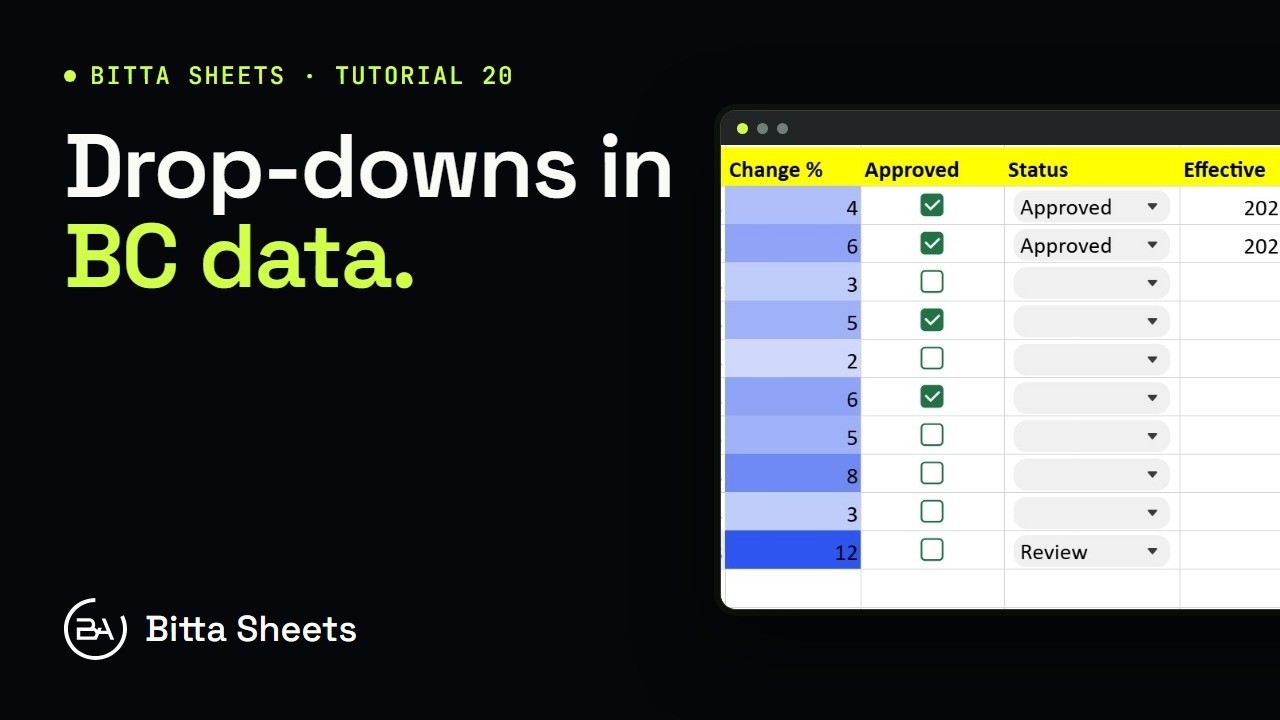 2:25Part 20Business Central Data Entry: Drop-Downs, Checkboxes, Validation
 2:37Part 21Edit Business Central Journal and Document Lines in a Sheet
 2:43Part 24Business Central Sheets Setup, Permissions and Role Center
 3:03Part 18Organize Business Central Workbooks: Sheets, Folders and Favorites
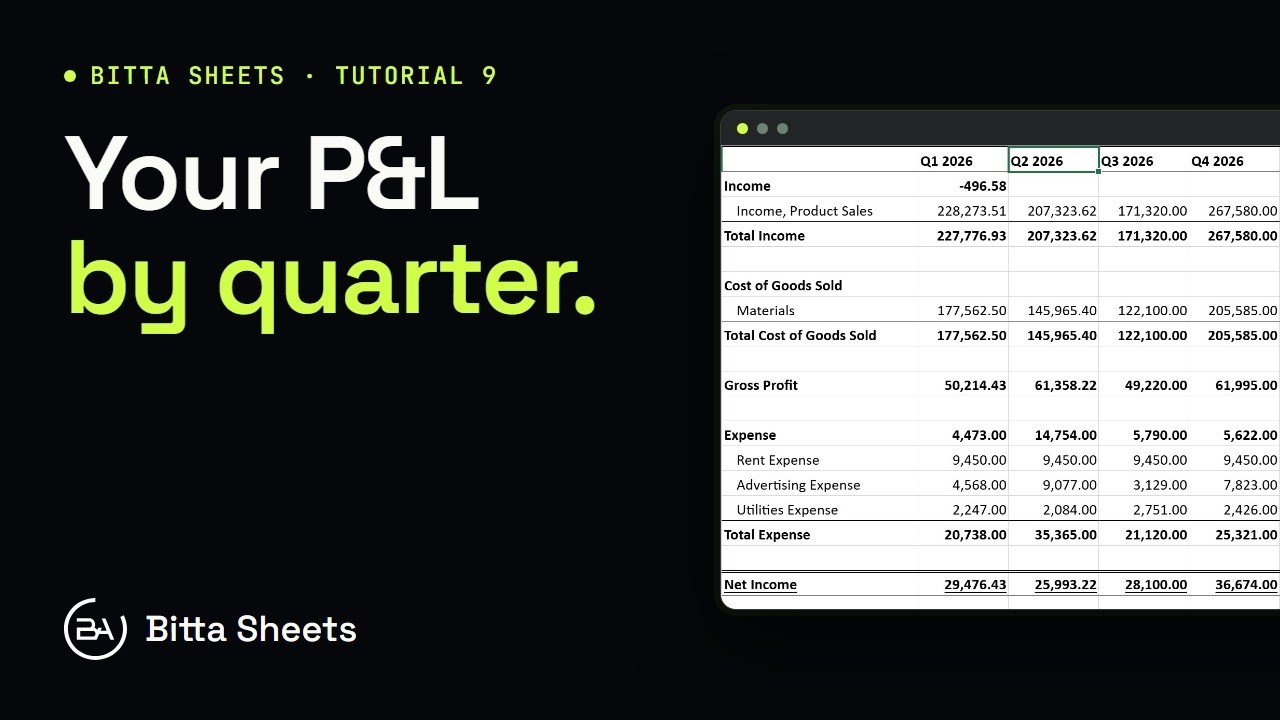 2:47Part 9Business Central Financial Reports by Period, with Drill-Down
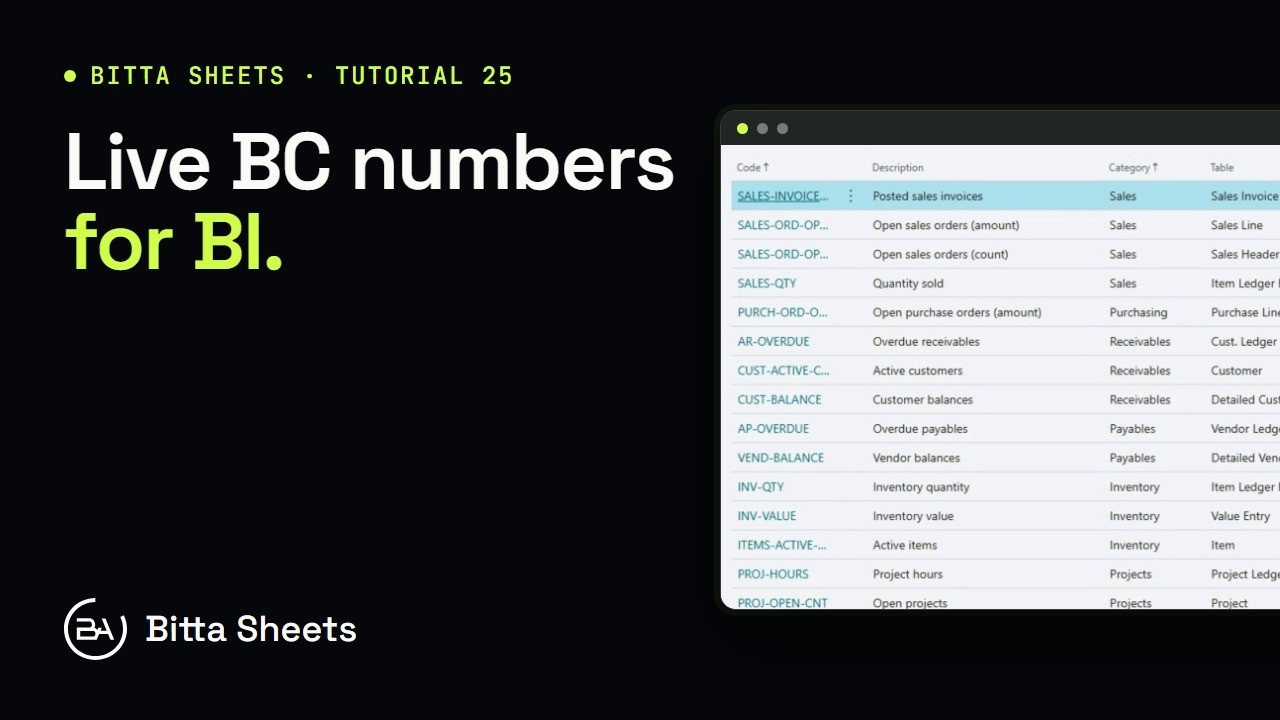 2:47Part 25Business Central Financial Metrics and Report API for BI
 2:58Part 17Share Business Central Workbooks: Access, Present and Export
 3:03Part 10Business Central Month-End Reporting with Live Formulas and Filters
 2:30Part 23Business Central Queries, Report Data and Date Series in a Sheet
 2:37Part 22Business Central SQL Query and Joined Tables in a Sheet
Next step
Want help rolling out Bitta Sheets?
Ask the team that builds it, or book a demo on your own scenario. Prefer email? Write to info@bittaapps.com.