Bitta Sheets · Part 5 · 2:56 · YouTube
Business Central Consolidation: Companies and Account Mapping
What this video covers
Set up a Business Central consolidation in one wizard, then map the accounts in a sheet.
Pick the companies of the group, the period and the group chart of accounts, and get one consolidation workbook with companies, ownership, rates, account mapping, eliminations and the consolidated statements, all live from Business Central.
Then filter the unmapped accounts, type the group accounts, review the changes and apply them to Business Central, or suggest and confirm mappings on the Consolidation Account Mapping page.
Transcript
Three companies, one set of group figures, and no trial balances copied by hand. Here's a group consolidation, built from three Business Central companies in one workbook.
The New Consolidation wizard sets up the companies, the period and the group chart. You map each company's accounts once, and every figure stays live. Search for New Consolidation, create a new one,
and give it a code and a name. The Companies step lists every company in the environment. Filter it to your group. Include Larkspur West and Harbor Point Services,
and give each company a short code. Larkspur Supply is the parent. Ownership and the consolidation method come in the next tutorial. One consolidation holds up to fifty companies of the same environment.
Choose the period: January to September twenty twenty-six. A blank group currency means the parent's own currency. Copy the group chart from this company, and let the wizard suggest mappings by consolidation account, number or name.
Harbor Point Services has sixteen accounts the group chart doesn't have yet. They're flagged, never dropped. Keep the default elimination rules for now, and finish.
The consolidation workbook opens with six tabs, starting with the companies, their ownership and rates. Account Mapping links every company account to a group account. Filter it to the unmapped ones.
Type the group account for each: officer compensation goes to salaries, social security to FICA. Harbor Point's license accounts have no match yet, so add them to the group chart.
Map them too. Then review the changes, check them against Business Central, and apply. Those seven accounts are now mapped in Business Central.
The same mapping is on the Consolidation Account Mapping page, where Suggest proposes matches you can confirm in one go. Then Confirm All Suggestions confirms all seven hundred and four in one click. The Consolidated tab shows each company side by side,
then the group, with every amount mapped. Use it when your group's companies share one Business Central environment, and you need group figures without exports. Next: ownership, rates and minority interest.
More Bitta Sheets videos
All videos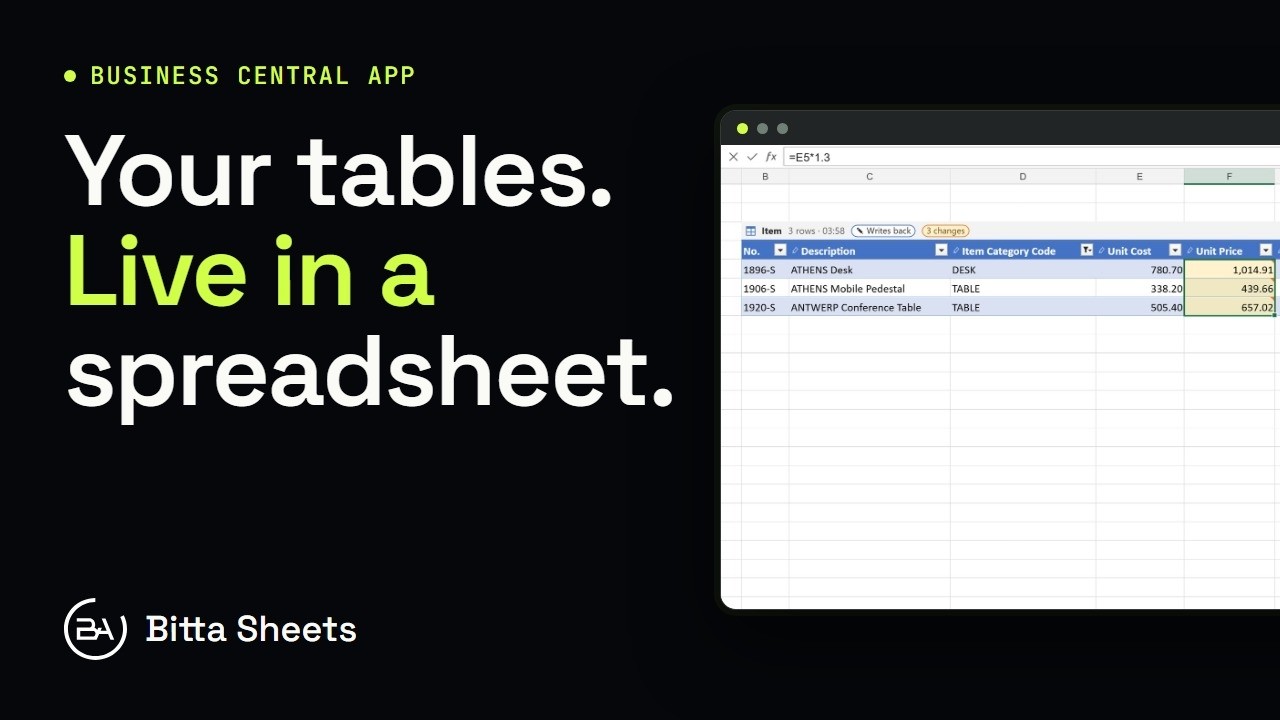 1:18OverviewEdit Business Central Tables Live in a Spreadsheet
 2:08Part 1Edit Business Central Data in an Excel-Style Sheet
 3:08Part 2Business Central Bulk Update Without Export and Import
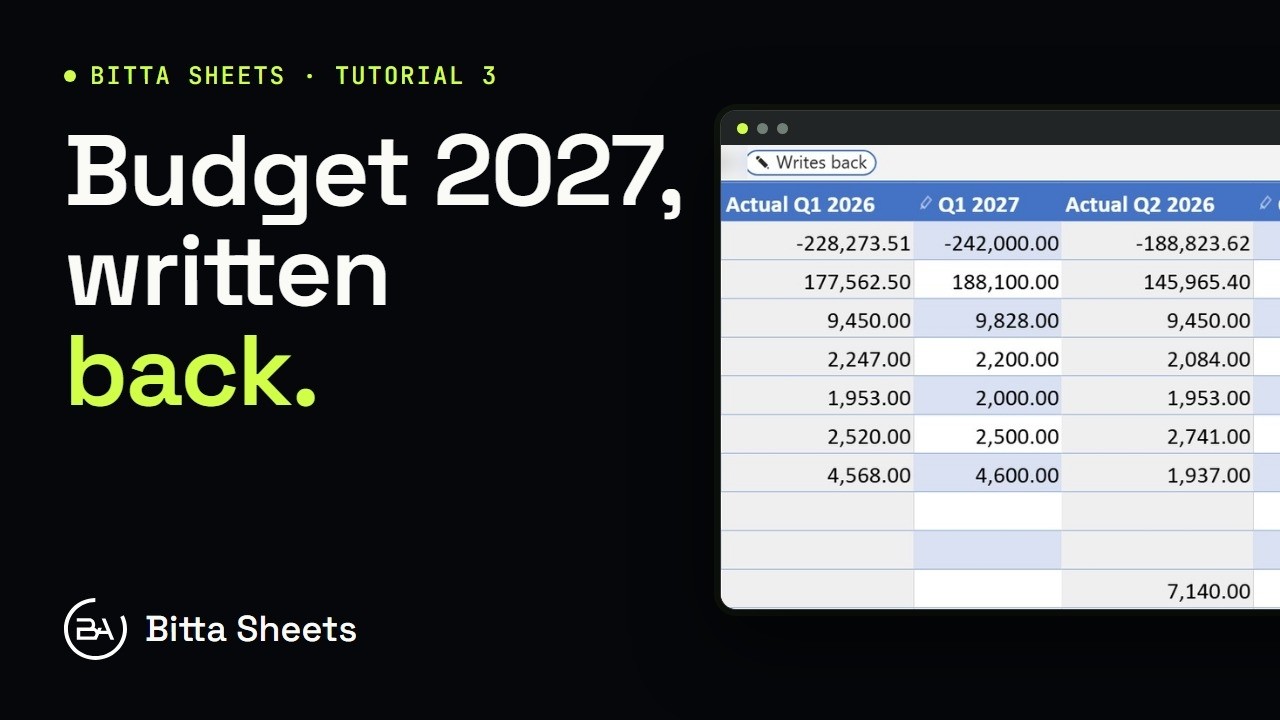 2:50Part 3Business Central Budget in a Spreadsheet, Written Back Live
 2:35Part 4Business Central Budget Entry by Department
 2:29Part 6Business Central Consolidation: Ownership, Rates and Minority Interest