Bitta Sheets · Part 25 · 2:47 · YouTube
Business Central Financial Metrics and Report API for BI
What this video covers
Use financial report metrics in Business Central: numbers that don't live on a G/L account, such as overdue receivables or open sales orders, in your financial reports and workbooks.
Test a metric for a period, add metric rows to a row definition, and insert a metric in a workbook as a live formula.
Then set up the Financial Report API: ready-made addresses and Power Query code for Power BI or Excel, and snapshots for fast scheduled refreshes.
Transcript
Priya wants overdue receivables in the monthly report, and the income statement in Power BI. Here's how to use financial report metrics, and the Financial Report API.
Metrics are numbers that don't live on a G/L account, like open sales orders or overdue receivables. Financial report rows can read them. Financial Report Metrics is the library.
Load Standard Metrics adds twenty, from posted sales invoices to headcount. Each metric reads a table and a field, with a method such as a sum or a count. Copy Metric makes your own version, for example with another filter. Test calculates a metric for a period.
Overdue receivables for 2026 come to 102,438, from 607 records. Import and Export move metrics to another environment. In a row definition, open Actions and choose Insert Metrics from Library.
Pick a metric, and it's added as a row. Here are three: overdue receivables, active customers and inventory value. Each has the totaling type Metric, with the metric's code. From the same menu, Test Metric Row checks a row,
and Metric Card opens the metric's definition. In a workbook, the Metric button on the Formulas tab inserts a metric as a formula. Active customers needs no period. For customer balances, type the period, here 2026.
The cell holds a Business Central formula, so the number stays live. For Power BI or Excel, start in Studio Setup. The Financial Report API isn't set up yet.
In Financial Report API Setup, choose a default report, here the income statement. API Addresses lists the addresses and the Power Query code to paste into Power BI or Excel.
Snapshots store a report's cells, so scheduled refreshes read them fast. Publish Now calculates one. Schedule sets up a job queue entry. Back in Studio Setup, the Financial Report API is set up.
Use metrics when a report needs numbers beyond the ledger, and the API when your reporting lives in Power BI. That's the series. You'll find this guide, and all the others,
on our website.
More Bitta Sheets videos
All videos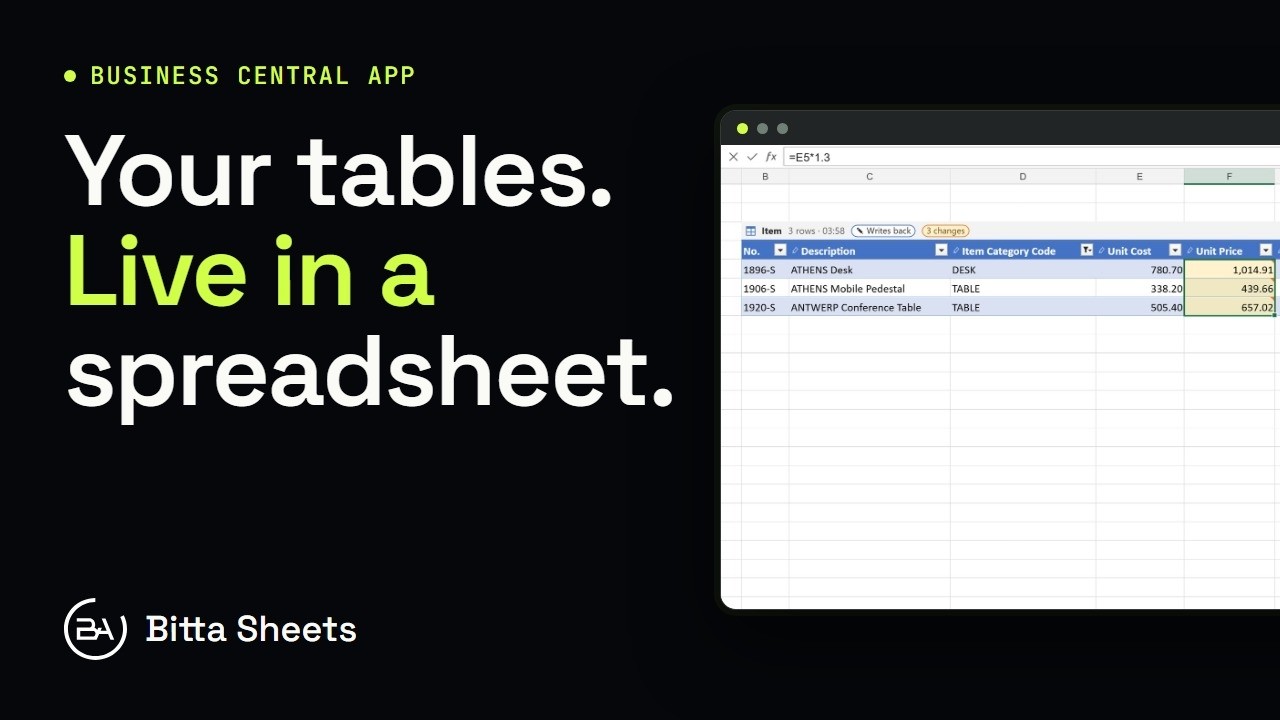 1:18OverviewEdit Business Central Tables Live in a Spreadsheet
 2:08Part 1Edit Business Central Data in an Excel-Style Sheet
 3:08Part 2Business Central Bulk Update Without Export and Import
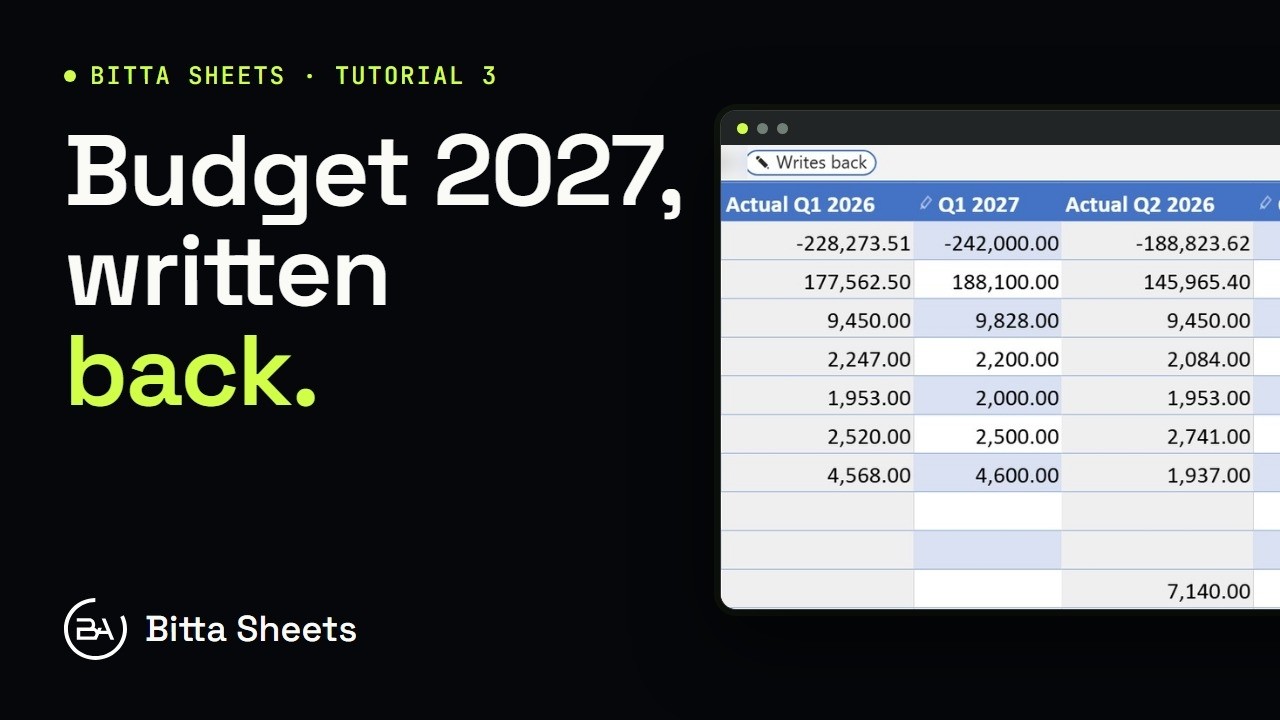 2:50Part 3Business Central Budget in a Spreadsheet, Written Back Live
 2:35Part 4Business Central Budget Entry by Department
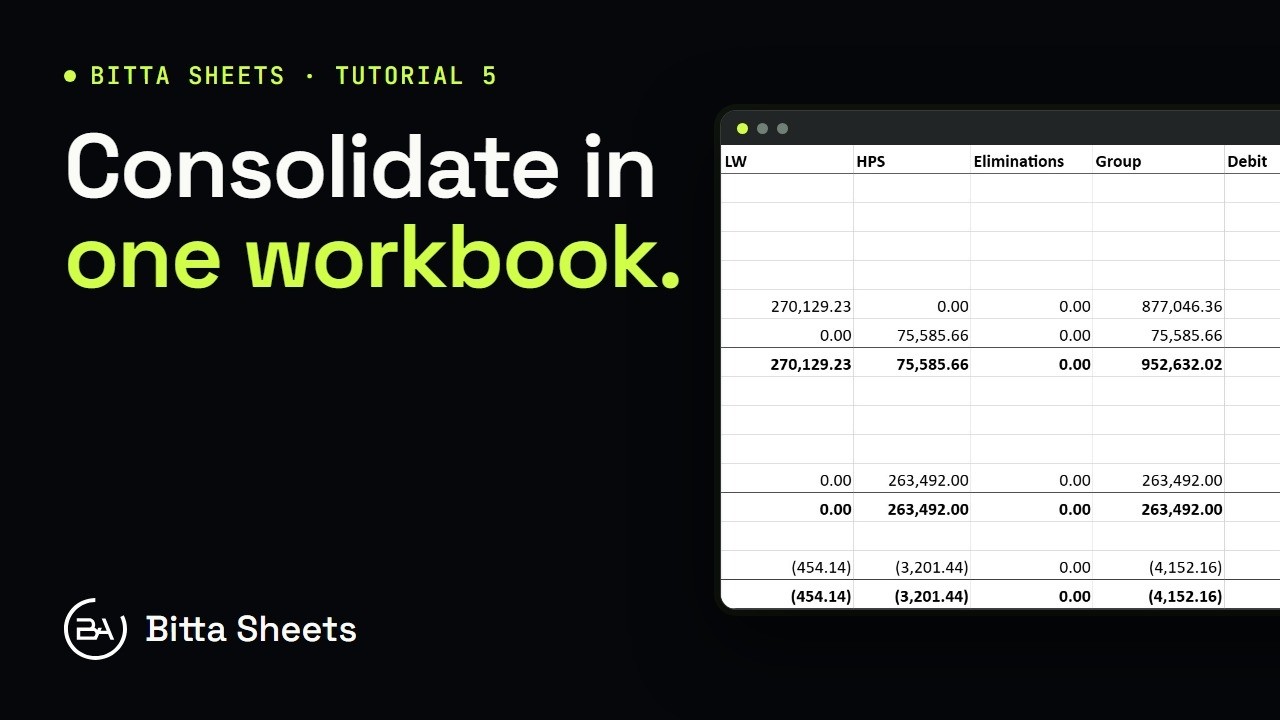 2:56Part 5Business Central Consolidation: Companies and Account Mapping