Dark Mode for Business Central: Introducing Bitta Theme
Dark, dim, and high-contrast themes, plus a color bar that shows which environment you are working in
On this page
Users who spend the whole day in Business Central often ask for dark mode for Business Central, and administrators often ask a different question: how do people know whether they are in production or a sandbox? Bitta Theme, a Chrome extension from Bitta Apps, answers both. It applies a dark, dim, or high-contrast theme to Business Central online, and it places a colored bar across the top of every page that names the environment and company in use.
This article covers what each theme looks like, how the environment color bar works, and what the extension does and does not do with user data.
Why appearance and environment awareness matter
Business Central is a long-session application. Finance, purchasing, and warehouse users can keep it open for an entire working day, moving between lists, cards, and journals. The standard interface is bright, and some users find a darker or higher-contrast view more comfortable over long periods or easier to read.
The second issue is less visible but more costly. Most tenants run at least one production environment and one or more sandboxes. Microsoft describes production and sandbox environments as serving very different purposes: production runs the business, while sandboxes are for development, testing, and training and can be deleted at will. A sandbox created from production data can look almost identical to production. When several browser tabs are open, it is easy to post a test document in the live company or to look for a test result in the wrong environment.
Clear environment boundaries also support the testing habits described in the upgrade readiness checklist, where critical workflows are verified in a sandbox before an update reaches production.
Four theme options
Bitta Theme offers four settings, selected from the extension's toolbar popup:
Off: standard Business Central
Dark: a full dark theme for long working days
Dim: a softer, lower-contrast dark theme
High contrast: strong colors and clear edges for readability
Changes apply immediately to open Business Central tabs, so a user can compare themes without reloading the page.
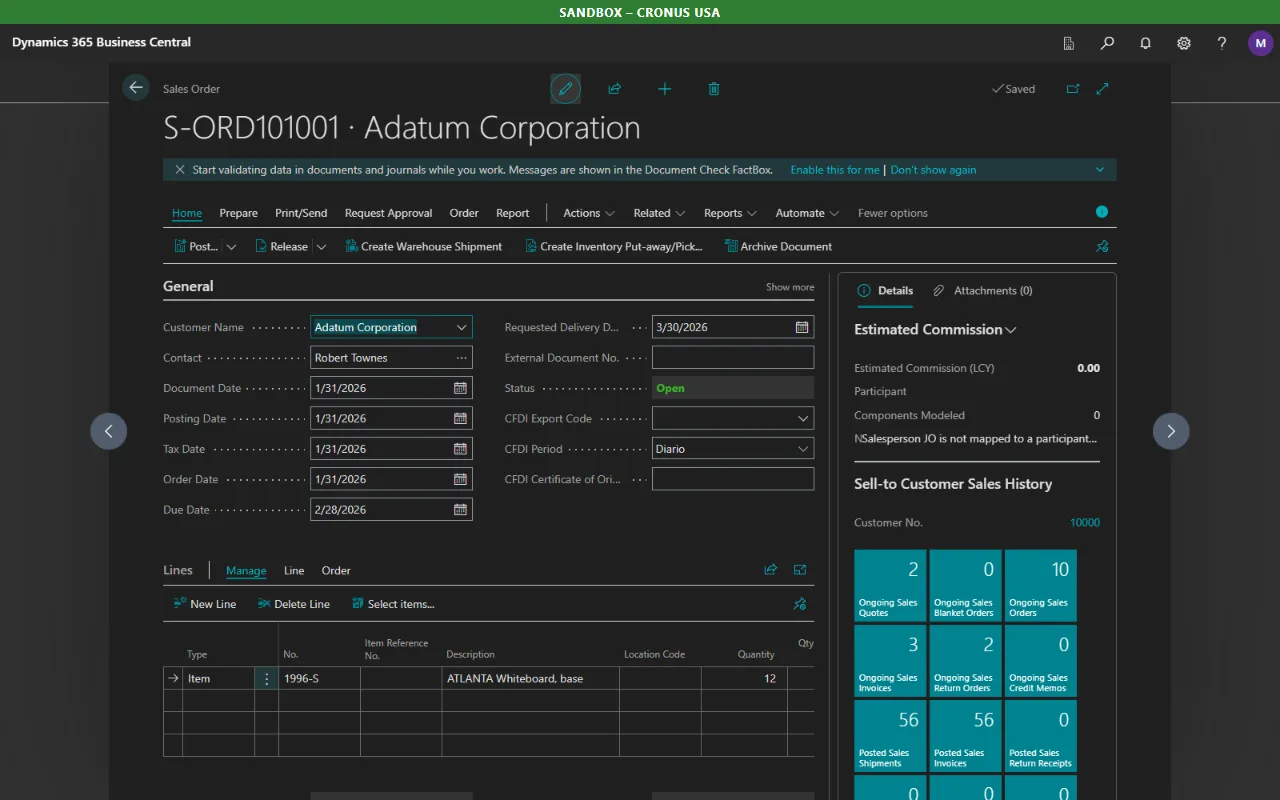
The dark theme keeps Business Central's familiar layout, action bars, FactBoxes, and cues in place. Only the colors change, so existing training material and process documentation still match what users see.
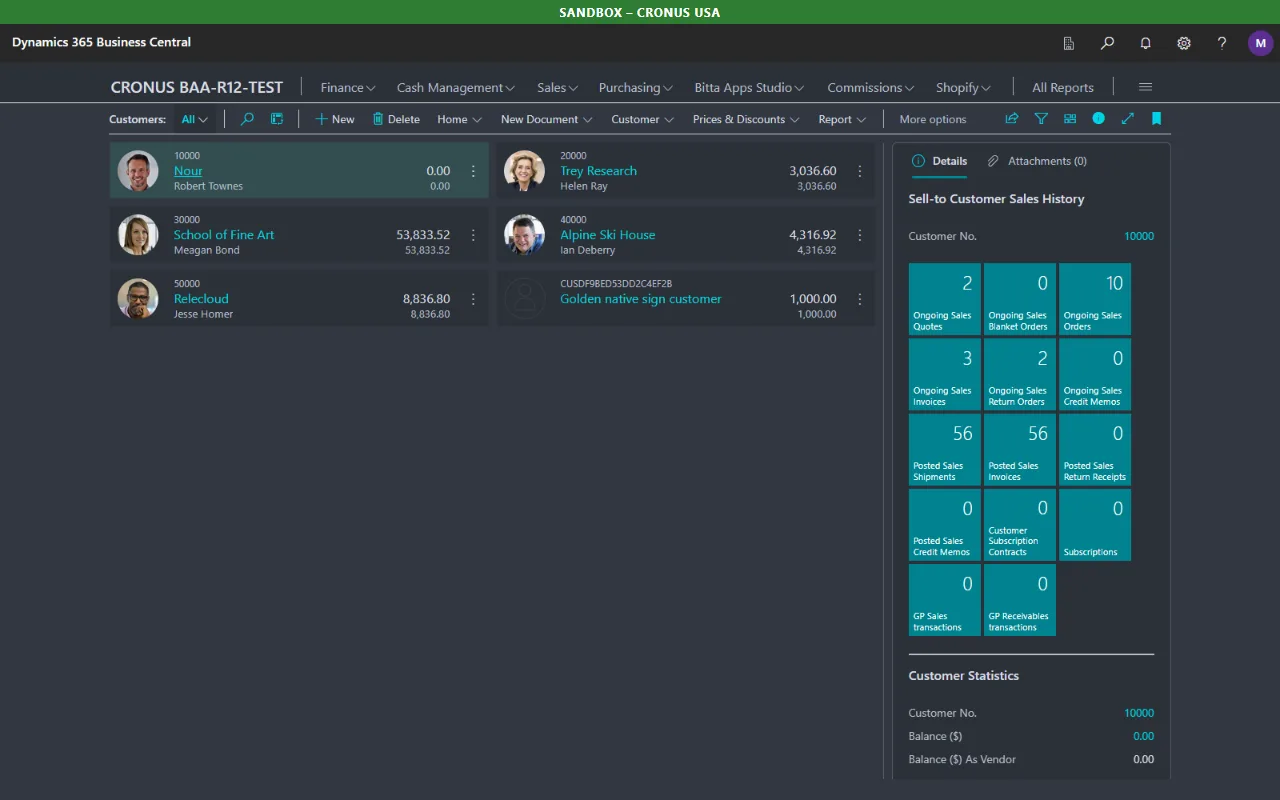
For users who prefer stronger separation between elements, the high-contrast option uses a black background with brighter tiles and clearer edges.
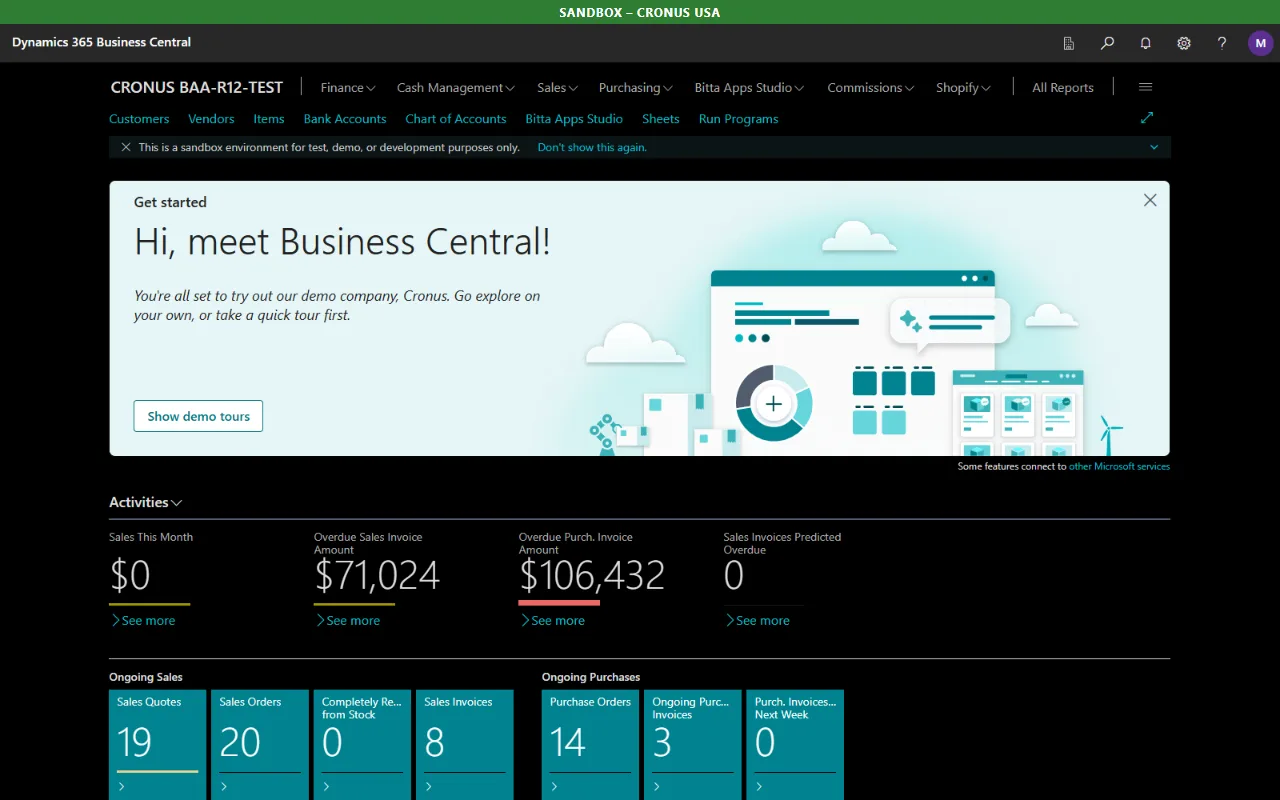
Themes are a personal comfort setting. They do not replace accessibility work in the application itself, which belongs in extension design, as covered in Business Central AL page design patterns.
The environment color bar
The environment color bar is the feature administrators tend to value most. A colored bar across the top of every Business Central page names the environment and company, for example PRODUCTION and CRONUS USA.
By default, production environments are red and all other environments are green, so a live system and a test system can be told apart at a glance. Colors can be changed per environment. A team that uses a separate user acceptance testing environment, for example, can give it its own color so that testers, approvers, and consultants all recognize it immediately.
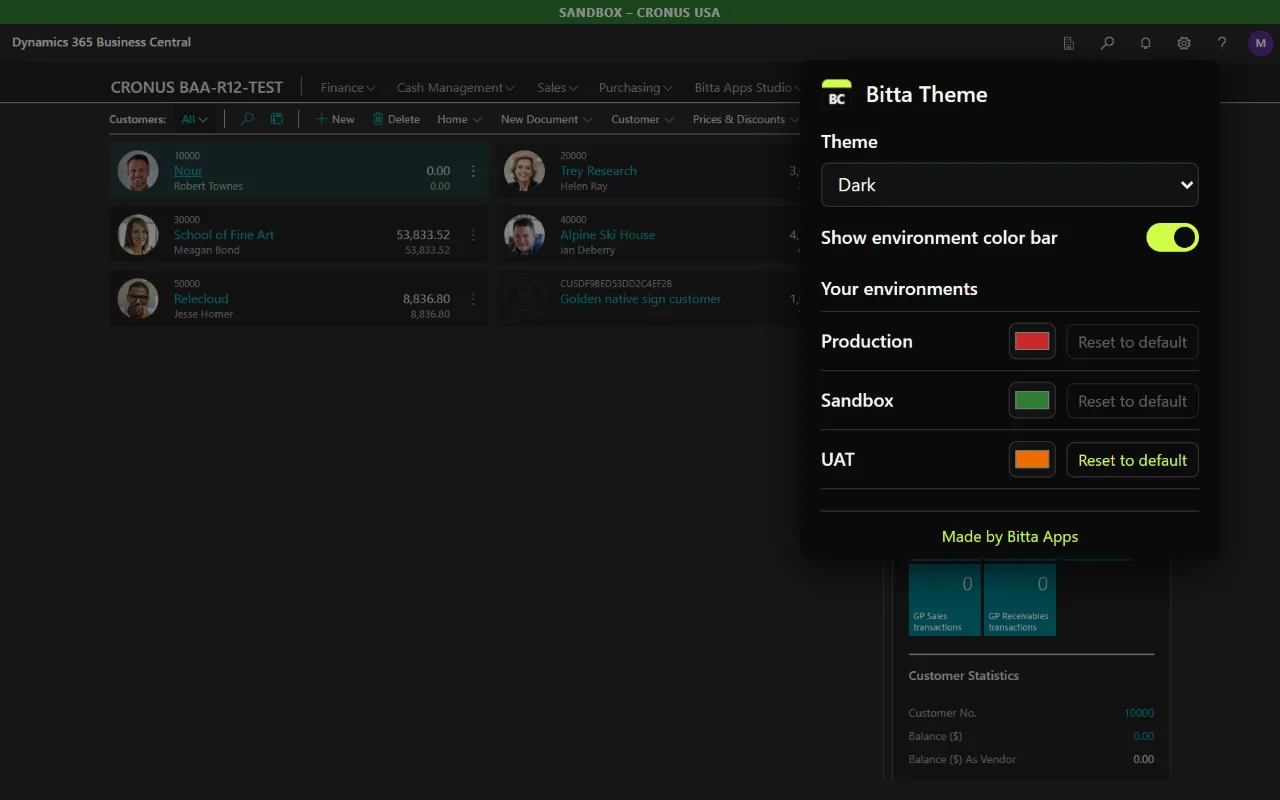
The popup lists each environment the user has opened, with a color picker and a reset option for each one. The bar can be switched off at any time, independently of the theme.
The color bar is also useful when capturing evidence. A screenshot that shows the environment name removes any doubt about where a test was run, which pairs well with an issue report captured in ShowMe for Business Central.
Privacy and scope
Bitta Theme is deliberately narrow:
It works with Business Central online at businesscentral.dynamics.com.
It does not collect, store, or send user data, and it has no analytics or tracking.
The only data it keeps is the user's own choices: the theme, the color bar setting, and the names and colors of environments. These are saved in the browser's settings storage, which the browser may sync to the user's other devices if browser sync is turned on.
It changes how pages look in the user's own browser. It does not change Business Central data, configuration, or what other users see.
Bitta Theme is an independent extension and is not made by or affiliated with Microsoft.
Rolling it out to a team
For an organization that wants consistent environment colors, a short rollout works well:
Install Bitta Theme for Business Central from the Chrome Web Store.
Agree on one color per environment, for example red for production, green for sandboxes, and orange for user acceptance testing.
Ask each user to open each environment once and set the agreed color in the popup.
Leave the theme choice to each user; the color bar is what protects the team.
A Business Central Environment Snapshot is a good moment to confirm how many environments a tenant actually has and which ones users should be working in before colors are assigned.
Bitta Theme is at version 1.0.0. Feedback on themes, readability, and environment handling can be sent through the Bitta Apps contact page, and future versions will follow how Business Central users actually work across environments.
Frequently asked questions
Does Business Central have a dark mode?
Bitta Theme adds Dark, Dim, and High contrast themes to Business Central online through a Chrome extension. The themes change only how pages look in the user's own browser.
Does Bitta Theme change anything in Business Central?
No. It changes the appearance of pages in the user's browser. Business Central data, configuration, and what other users see are not affected.
How does the environment color bar know which environment I am in?
The bar names the environment and company of the page you are on. Production environments are red and other environments are green by default, and you can set your own color for each environment you have opened.
Does Bitta Theme collect any data?
No. It does not collect, store, or send user data and has no analytics or tracking. Your theme, color bar setting, and environment colors are saved only in your browser's settings storage.
Does Bitta Theme work with Business Central on-premises?
The extension is built for Business Central online at businesscentral.dynamics.com.
Sources
Claims in this article were checked against the following on Oct 22, 2026.