ShowMe: Report Business Central Issues Support Can Fix
A free Chrome extension that captures the page, the field, and the error details along with the screenshot
On this page
Most attempts to report Business Central issues start with a screenshot cropped tightly around an error message and a sentence such as "posting doesn't work." The details support actually needs to reproduce the problem (which page, which field, what value was entered, which session failed) are usually lost between the moment something goes wrong and the moment a ticket is opened. ShowMe for Business Central is a free Chrome extension from Bitta Apps built to keep that context attached to the report from the start.
This article explains why Business Central issue reports arrive incomplete, what ShowMe captures, and how a team can use it to shorten the path from "something is wrong" to a reproducible ticket.
Why Business Central issue reports arrive incomplete
Reporting a problem is extra work for the person who just hit it. Under time pressure, users capture the part of the screen that looks wrong, retype the error from memory, and leave out the steps that led there. Support then asks the follow-up questions, and the original context is often gone by the time the answers come back.
Business Central already exposes much of the information support needs. The error dialog's Copy details action places the error message on the clipboard together with the internal session ID, the Application Insights session ID, the client activity ID, the UTC timestamp, the user telemetry ID, and the AL call stack, as described in Microsoft's guide to understanding the error dialog. The problem is not that the data is unavailable. It is that collecting it, alongside the page and field involved, depends on a user remembering every step.
A clear reporting habit matters for the same reason a clear support handoff for job queues matters: the person who fixes the issue is rarely the person who saw it.
What ShowMe captures with each note
ShowMe organizes work into reviews. A user starts a review, navigates to the Business Central page where the issue appears, and describes what is wrong. For each note, ShowMe takes a screenshot and records:
The page URL and title
The active field's name
The value in that field
An environment line covering browser, operating system, window size, zoom, language, and time zone
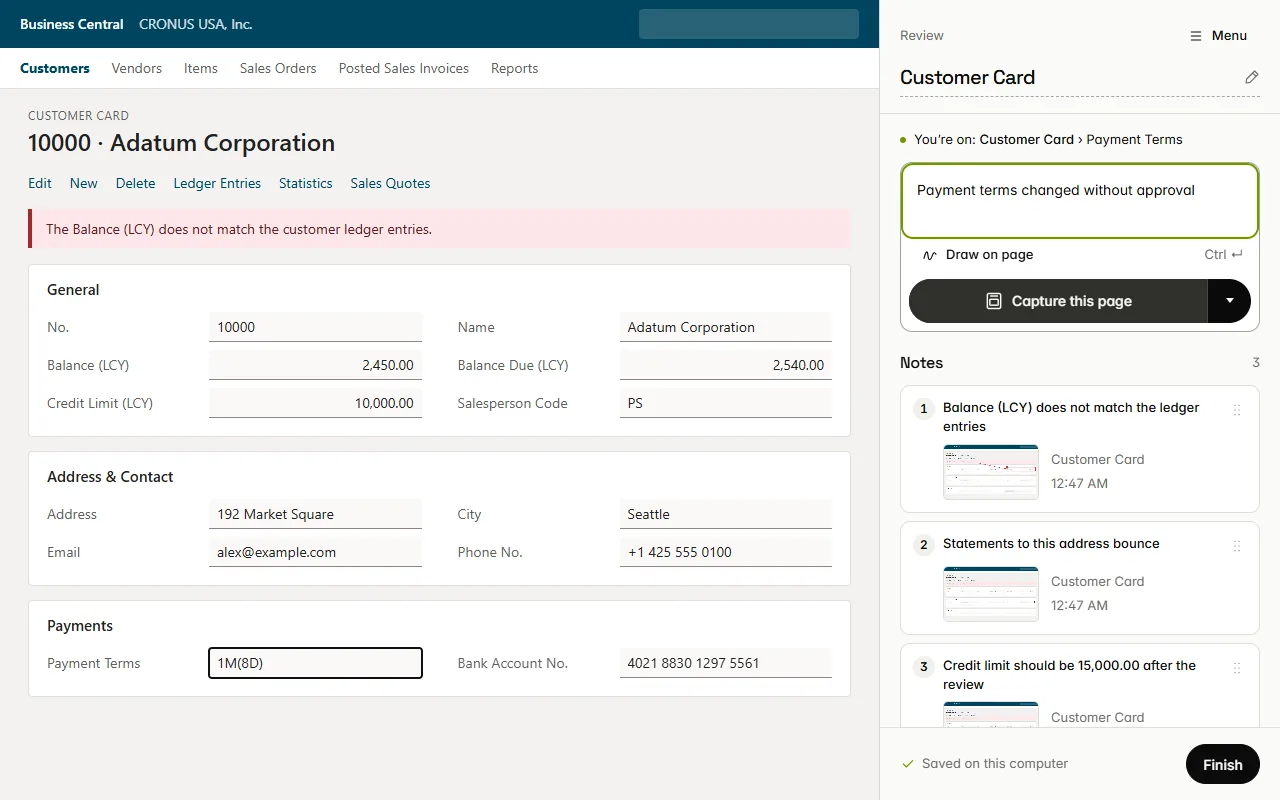
Three capture modes cover the common cases: the full page, a selected region, or a three-second delay so a dropdown or action menu can be opened before the image is taken.
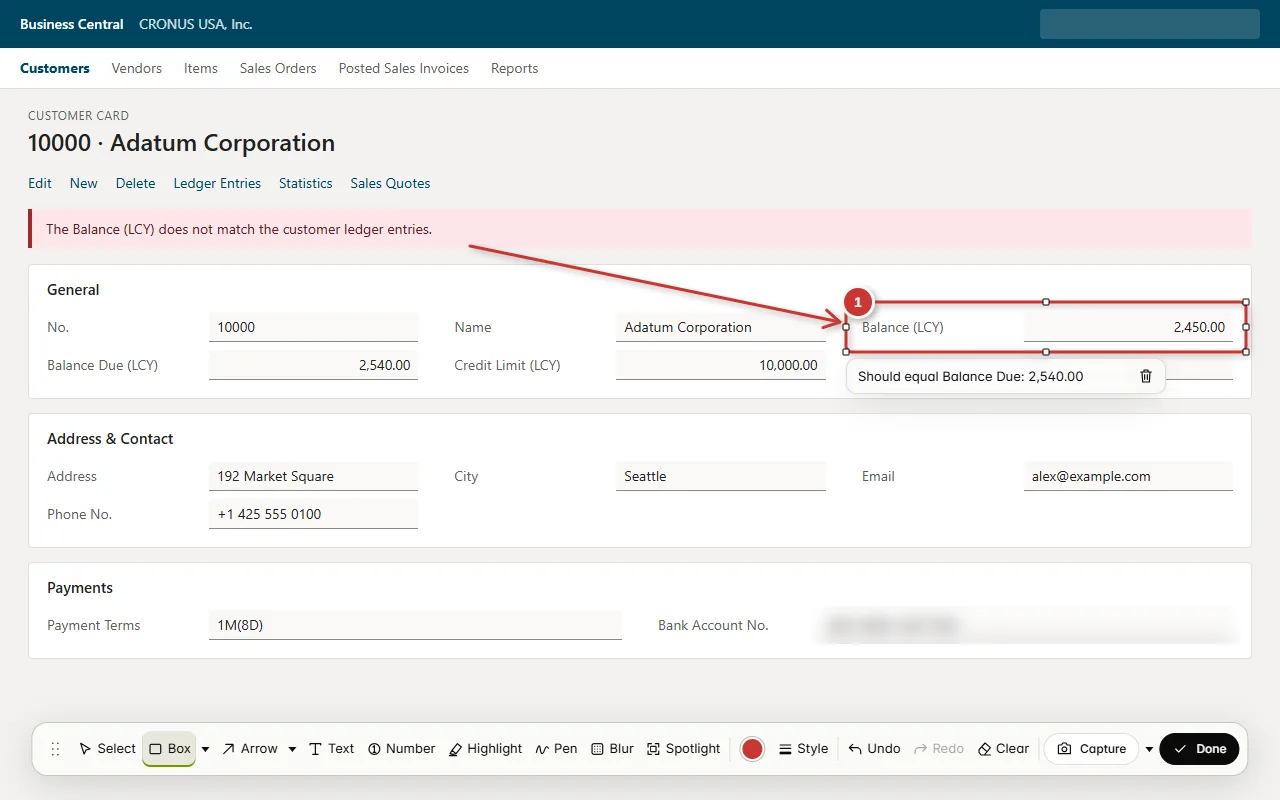
Each screenshot can then be annotated with numbered boxes, arrows, text, and highlights. A blur tool covers sensitive content such as customer names or bank details before anything leaves the browser.
Turning a pasted error into usable support data
When a Business Central error is pasted into a note, ShowMe extracts the error message and the identifiers support needs instead of storing one undifferentiated block of text.
Those identifiers are what connect a user's report to the technical record. The Application Insights session ID corresponds to the operationId in Business Central telemetry, so a developer can query what happened in that session before the error. Teams that already send extension telemetry to Azure Application Insights, as covered in the AL telemetry operations guide, can go straight from a ShowMe report to the relevant trace data. The AL call stack identifies the object, trigger, line, and publishing app where the error was raised, which helps establish whether the issue sits in the base application, a partner app, or a per-tenant extension.
Video replay and step-by-step tutorials
Some problems are easier to show than to describe. ShowMe can keep a rolling buffer of the last 10 to 60 seconds of the tab as video, optionally with tab audio or microphone. Recording happens in memory, and a clip is saved only when the user asks for it, so the moment just before an unexpected result can be preserved after the fact.
Tutorial mode works in the opposite direction. It records the user's clicks and turns them into an illustrated, step-by-step guide. That is useful when documenting how a process is supposed to work: training material for new users, evidence for user acceptance testing, or the workflow checks that belong in an upgrade readiness review.
Sharing a report: exports and issue trackers
Notes within a review can be reordered before sharing. A finished review can be:
Exported to PDF, HTML, Markdown, or ZIP
Copied into an email, or downloaded as an email draft
Filed directly to Azure DevOps, Jira, or monday.com
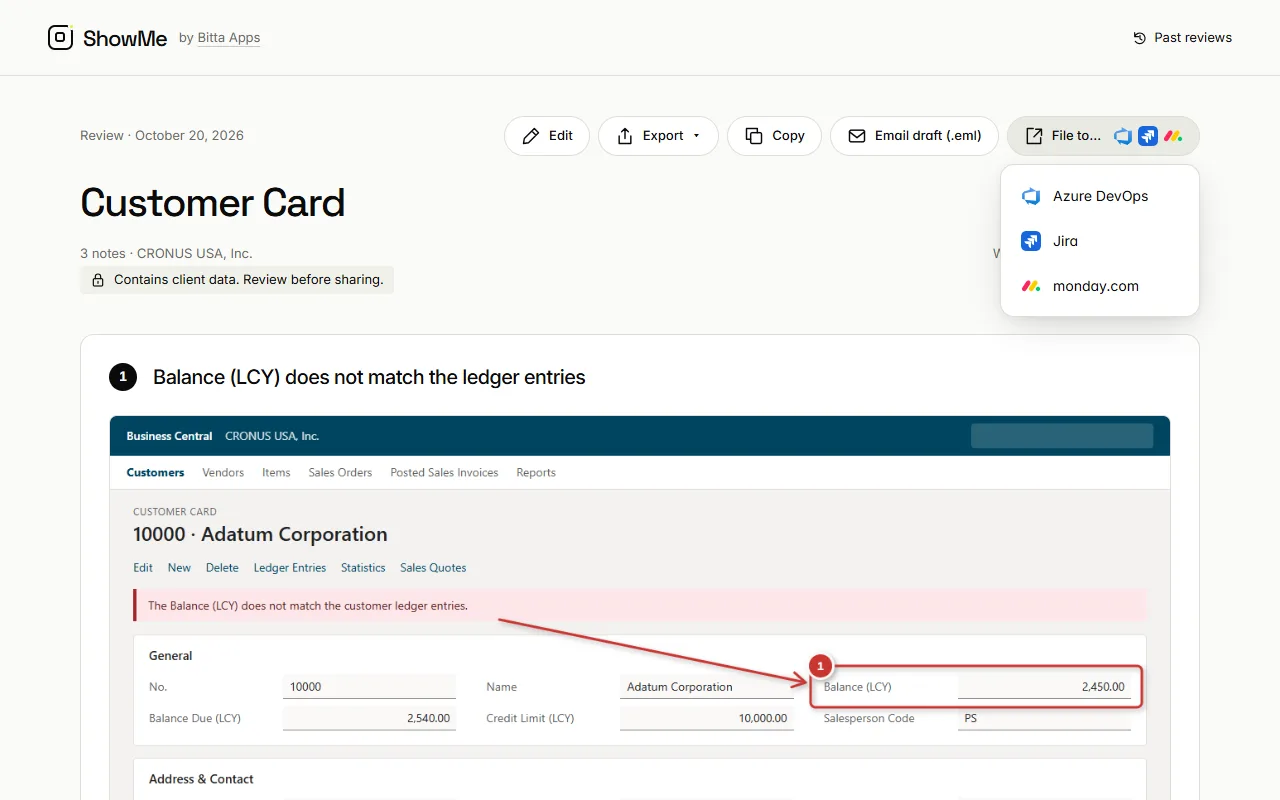
Tracker filing shows a preview of exactly what will be sent before anything is submitted, and ShowMe can search the connected tracker for similar items to reduce duplicates. Data travels directly from the browser to the tracker. It does not pass through Bitta Apps.
Privacy by design
Issue reports routinely contain customer data, prices, and internal process details, so the extension was designed around keeping that information local. According to the ShowMe privacy policy:
There is no account, no analytics, no advertising, and no backend server. Bitta Apps receives nothing a user captures.
Reviews, screenshots, clips, and tutorials are stored in Chrome's extension storage on the user's computer.
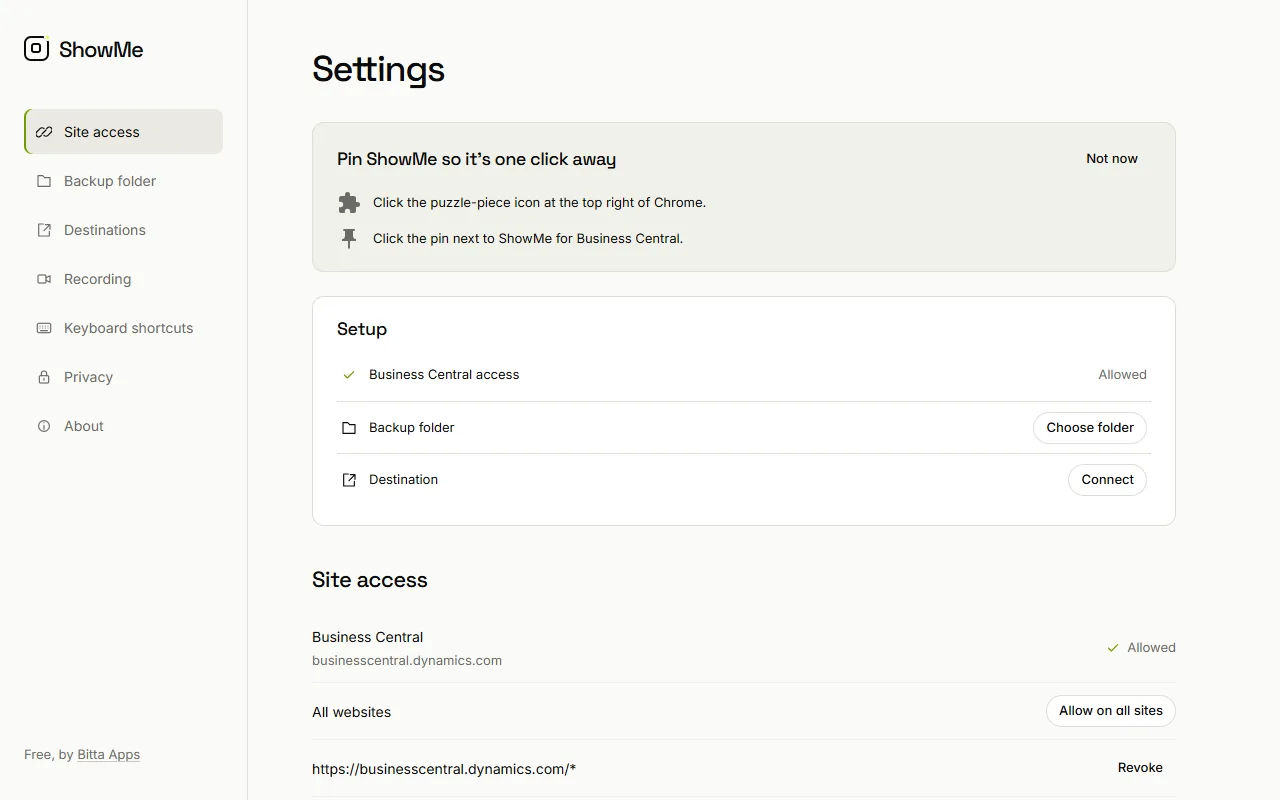
Site access is opt-in per site. A user can allow Business Central only rather than every website.
Fields that look secret, such as passwords, PINs, and card numbers, are saved as
[hidden]and masked in screenshots. Detection is not complete, and video clips are never redacted, so users should still review captures before sharing.The Business Central company and tenant are kept for navigation only and are excluded from exports and backups.
Tracker credentials are stored locally, separate from reviews, and are never included in exports or backups.
Uninstalling the extension or clearing Chrome data removes everything ShowMe stored. Exported files remain with the user.
A practical reporting workflow for Business Central teams
A team adopting ShowMe can standardize issue reporting in a few steps:
Install ShowMe for Business Central from the Chrome Web Store and grant site access to Business Central only.
When an issue appears, start a review and capture the page before navigating away.
If an error dialog appears, use Copy details in Business Central and paste the result into the note.
Annotate the screenshot to show the exact field or action involved, and blur anything that should not leave the organization.
Add further notes for each step that led to the issue, or save the last few seconds of video.
Preview the report and file it to the team's tracker, or export it for the support provider.
The same structure works for internal administrators, for in-house developers, and for partners who receive reports from several customers. A report that names the page, field, value, and session gives the reviewer a starting point that a cropped screenshot cannot, much like the structured findings in a Business Central Environment Snapshot.
ShowMe is at version 0.1.0, and its feature set will follow how Business Central users and support teams actually report problems. Feedback, feature requests, and tracker integrations worth adding can be sent through the Bitta Apps contact page.
Frequently asked questions
Is ShowMe for Business Central free?
Yes. ShowMe is a free Chrome extension, and it does not require an account.
Does Bitta Apps see the screenshots or data captured in ShowMe?
No. ShowMe has no backend server, analytics, or tracking. Captures are stored locally in Chrome's extension storage, and when a report is filed to a tracker the data goes directly from the browser to that tracker.
Which issue trackers does ShowMe support?
ShowMe can file notes to Azure DevOps, Jira, and monday.com, with a preview of exactly what will be sent. Reports can also be exported to PDF, HTML, Markdown, or ZIP, or shared by email.
Does ShowMe hide sensitive data automatically?
Fields that look secret, such as passwords, PINs, and card numbers, are saved as hidden and masked in screenshots, and a blur tool covers other sensitive content. Detection is not complete and video clips are not redacted, so captures should be reviewed before sharing.
Does ShowMe need access to every website?
No. Site access is opt-in per site, and users can limit ShowMe to Business Central only. Allowing Business Central also allows the Microsoft sign-in page.
Sources
Claims in this article were checked against the following on Oct 22, 2026.