Bitta Sheets · Full demo · 12:09 · YouTube
Bitta Sheets for Business Central: Full Demo, a Month Without Exports
What this video covers
One month at Larkspur Supply, an office furniture and supplies distributor, done in Business Central tables that live in a spreadsheet: no export to Excel, no import to fix.
Bitta Sheets puts your Business Central tables in a spreadsheet, live. Type your changes, let Business Central check them, then apply them, with every change in the audit log. In this full demo you follow six jobs across one month: credit limits, a supplier price rise, the 2027 budget, the month-end reports and live formulas, the group consolidation, and the Monday sales pack.
Transcript
Export to Excel. Fix the numbers. Import them back. And the import fails, again.
Bitta Sheets puts your Business Central tables in a spreadsheet, live, and writes your changes back safely. This is one month at Larkspur Supply, an office furniture and supplies distributor, told in six jobs.
New credit limits for three customers, due in Business Central by three o'clock. Put the table in a sheet, type your changes, let Business Central check them, then apply. Every change is logged.
In a workbook, open Insert and choose Data table. Pick Customer and only the columns you need, add a filter so the sheet fetches just these customers, and allow write-back.
Nothing is written until you review it. The customers arrive live, and a pencil marks every column you can change. Type the new limits: twenty-five thousand for Trey Research, forty thousand for Alpine Ski House, fifteen thousand for Relecloud.
School of Fine Art moves to thirty-day terms. Each edit waits as a pending change. Review changes lists each one, old value beside new. Check changes runs Business Central's own validation on every record and rolls it
back, so you know it all works before anything is saved. Apply writes them one record at a time. On the customer card, the new limit is there. And the Studio Audit Log shows every field that changed,
with the old value and the new one. Done well before three. Mid-month, the chair supplier raises costs six percent, and every chair price has to follow.
Same move: a data table on Item, filtered to that supplier. Ten chairs, live from Business Central. Try typing a new cost on the Paris chair. Check changes runs Business Central's own rules,
and Business Central refuses: the item already has ledger entries, so its unit cost can't be typed over. Undo that change, and change the price instead. One formula does it: the unit cost, plus six percent,
times the markup, rounded to cents. Fill it down with Control D. Ten pending changes, and nothing written yet. All ten pass, and each shows what else changes,
like the profit percent. Meanwhile, a colleague changes the Sydney chair's price on its card. Apply. Nine prices are written.
Sydney is skipped: someone changed it after you loaded the table, so their price stays. Each record is written on its own. Refresh, and the nine new prices come straight from Business Central.
Sydney's change waits, highlighted, for your decision. The audit log keeps every field change, old and new. Budget season. The controller wants next year's budget in Business Central by Friday.
On G/L Budgets, select the 2027 budget and choose Open in Sheet: accounts down, a column per month, and a total. Start from last year. Copy from Actuals, rounded to the hundred,
and the preview lists every entry first. Apply, and 2027 holds what Larkspur really sold and spent in 2026. Select the sales and cost lines and change them by six percent. The preview shows every month, and the margin holds.
Type over a month like any spreadsheet: nine thousand five hundred for a bigger trade show booth in May. Rent is last year's three thousand one hundred fifty plus four percent, typed once and filled across the year.
Review lists all thirteen changes, Check runs Business Central's own checks, and Apply writes them to the budget. Compare with actuals by quarter puts last year next to each quarter of the plan. For the departments, the Department Budget Entry template gives every expense
account a line per department, with last year's actuals beside each period. Administration spreads nine thousand eight hundred for electricity like last year's actuals, and the quarters follow, highest in the third. Share the workbook through a permission set at Can edit budget amounts only.
Budget owners change their amounts, and nothing else. Every amount lands on the budget with its department, in time for Friday. Month-end.
The controller wants the income statement by quarter, and the entries behind fourth quarter sales. On Financial Reports, open the income statement in a sheet. The numbers are the ones Business Central's own report calculates,
and every cell is read-only. In the block settings, choose the Four quarters and total preset. Save, and 2026 splits into quarters: eight hundred seventy four thousand in sales, and a hundred twenty thousand of net income.
Pick the Sales department, and every number follows. Double-click fourth quarter sales, and Business Central opens the G/L entries behind it. Add last year beside it: sales up forty-six percent,
and net income almost three times 2025. Double-click a total, and it shows how it's calculated: the rows behind it and the result. For the close pack, a Month filter in the filter bar holds the period in cell B2.
BC.GL totals the revenue accounts for that period: ninety two thousand seven hundred forty-five for November. BC.BUDGET reads next year's revenue budget, FY2027.
A data table on G/L entries takes its posting date from the same Month filter, and lists November's revenue entries. When the month changes, open the Month filter and type December. Every formula and the table follow: December revenue is ninety six thousand
two hundred fifteen. Refresh all, or press F9, and the sheet reads Business Central again. Then the group close: three companies, one set of figures, and no trial balances copied by hand.
The New Consolidation wizard lists your companies. Include Larkspur West and Harbor Point Services, with Larkspur Supply as the parent. Pick the period, January to September twenty twenty-six.
The wizard copies the group chart and suggests mappings, and Harbor Point's sixteen extra accounts are flagged, never dropped. Type the group account for the rest, then review,
check against Business Central, and apply: seven of seven changes applied. The Consolidated tab shows each company side by side, then the group, every amount mapped.
Larkspur owns eighty percent of Larkspur West, so set its ownership to eighty. The group chart gets a minority interest account for equity and one for the result, and the other twenty percent goes to the minority interest.
Larkspur billed Larkspur West thirty-one thousand two hundred fifty. Larkspur West booked thirty-one thousand one hundred. Intercompany Matches pairs both sides, and Explain shows the difference, one hundred fifty, and the status Mismatch.
Each side opens on its G/L entries. Larkspur's September invoice is twelve thousand seven hundred fifty. Larkspur West booked it at twelve thousand six hundred: one hundred fifty short.
The difference goes to an intercompany difference account until Larkspur West corrects its invoice. On the Consolidated tab, the Eliminations column takes the sales between the companies out of the group figures.
Post shows the reason when exceptions block posting. The difference sits on the intercompany difference account, so you can clear the block, post, and correct it later. Preview, then Apply.
Reverse with Business Central's Reverse Register. The log shows Reversed, and the period can be posted again. Marcus wants to see how the quarter is going, at a glance.
A pivot table on posted sales invoice lines: item category down, quarters across, the amount as the value. Every product line, quarter by quarter, with totals. A second pivot ranks customers: two of them bring in about two thirds of the year.
Double-click any number for the records behind it. A chart reads the monthly sales pivot and refreshes with it. Click a column, and Business Central opens the entries behind it. A KPI card shows fourth quarter sales against the third quarter,
and how close it is to the target. Rosa wants the sales pack every Monday. A sheet distribution renders the workbook as PDF and emails it every week, one copy per recipient.
Preview renders the file without sending anything. Schedule creates a job queue entry on hold, so you review it before it runs. To share the dashboard, give a permission set Can view,
and those people open it read only. For Monday's meeting, choose Present. The plan shows without the ribbon or the formula bar, and a sheet tab moves between sheets.
Credit limits, a price rise, the budget, the month-end, the group close, and the Monday pack. One month, and not one import to fix. Bitta Sheets.
Your Business Central tables, live in a spreadsheet. Every step is in the Bitta Sheets guide and the tutorials. Find Bitta Sheets on Microsoft Marketplace.
More Bitta Sheets videos
All videos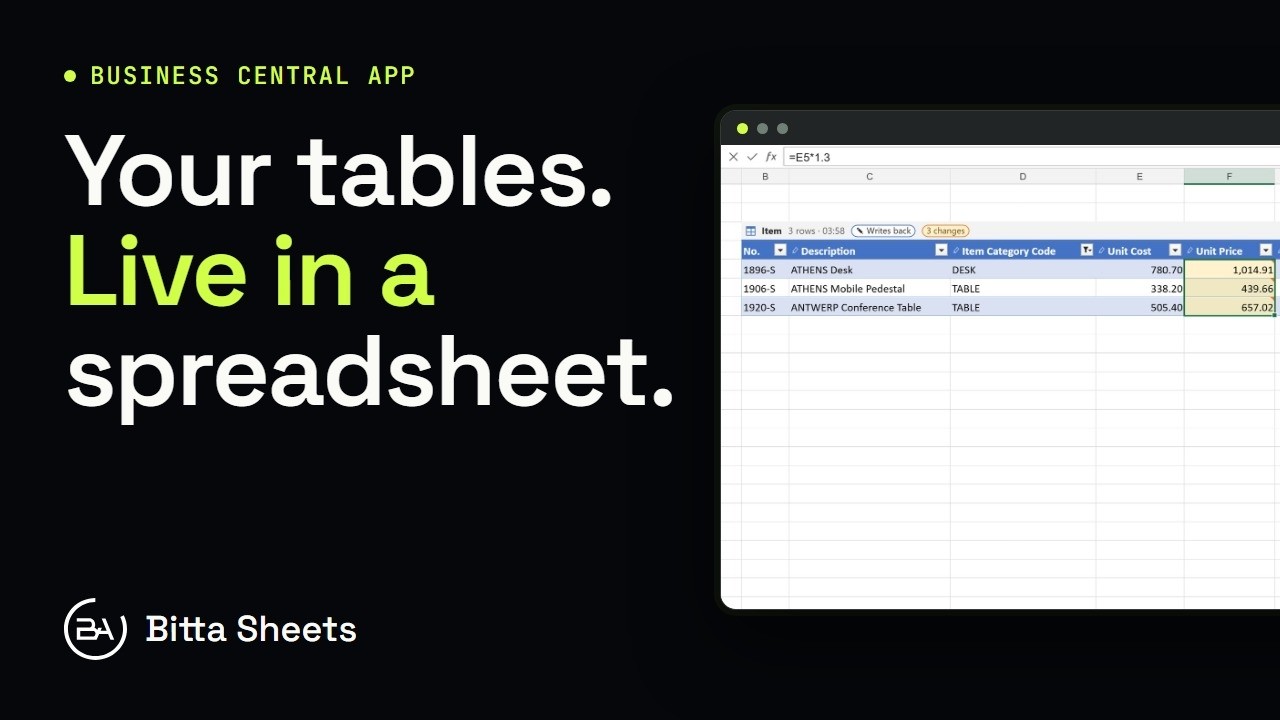 1:18OverviewEdit Business Central Tables Live in a Spreadsheet
 2:08Part 1Edit Business Central Data in an Excel-Style Sheet
 3:08Part 2Business Central Bulk Update Without Export and Import
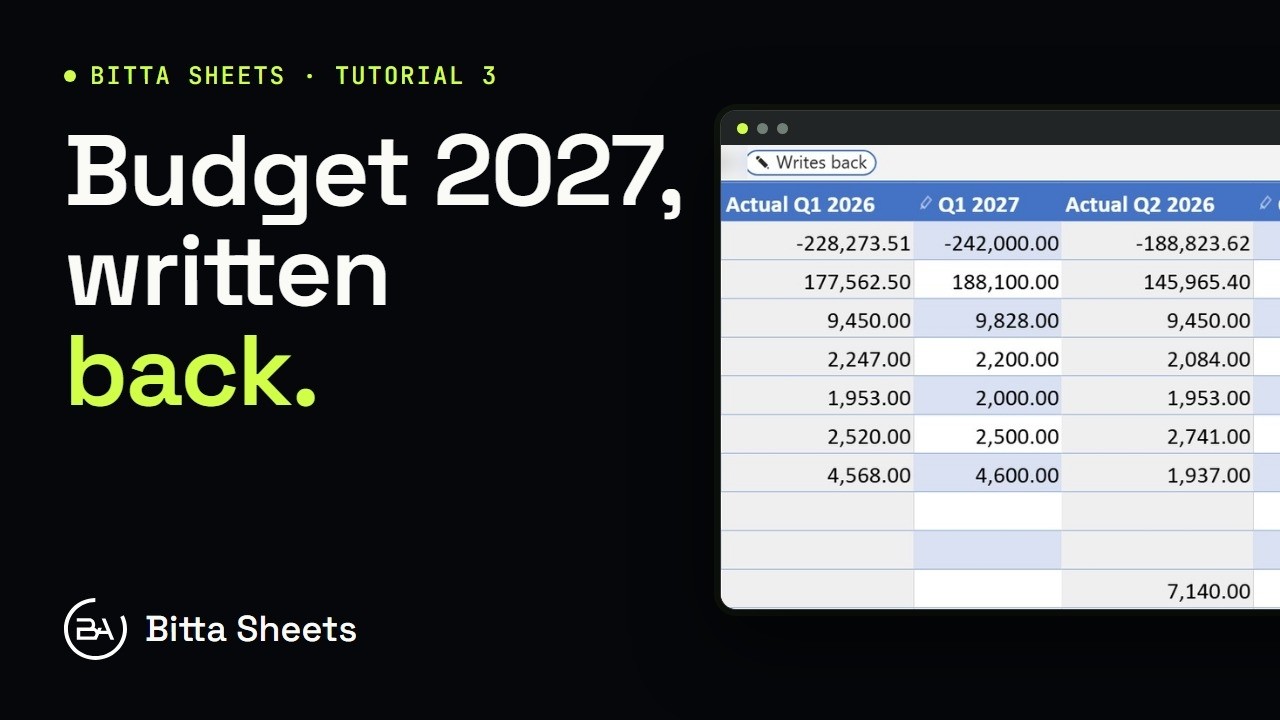 2:50Part 3Business Central Budget in a Spreadsheet, Written Back Live
 2:35Part 4Business Central Budget Entry by Department
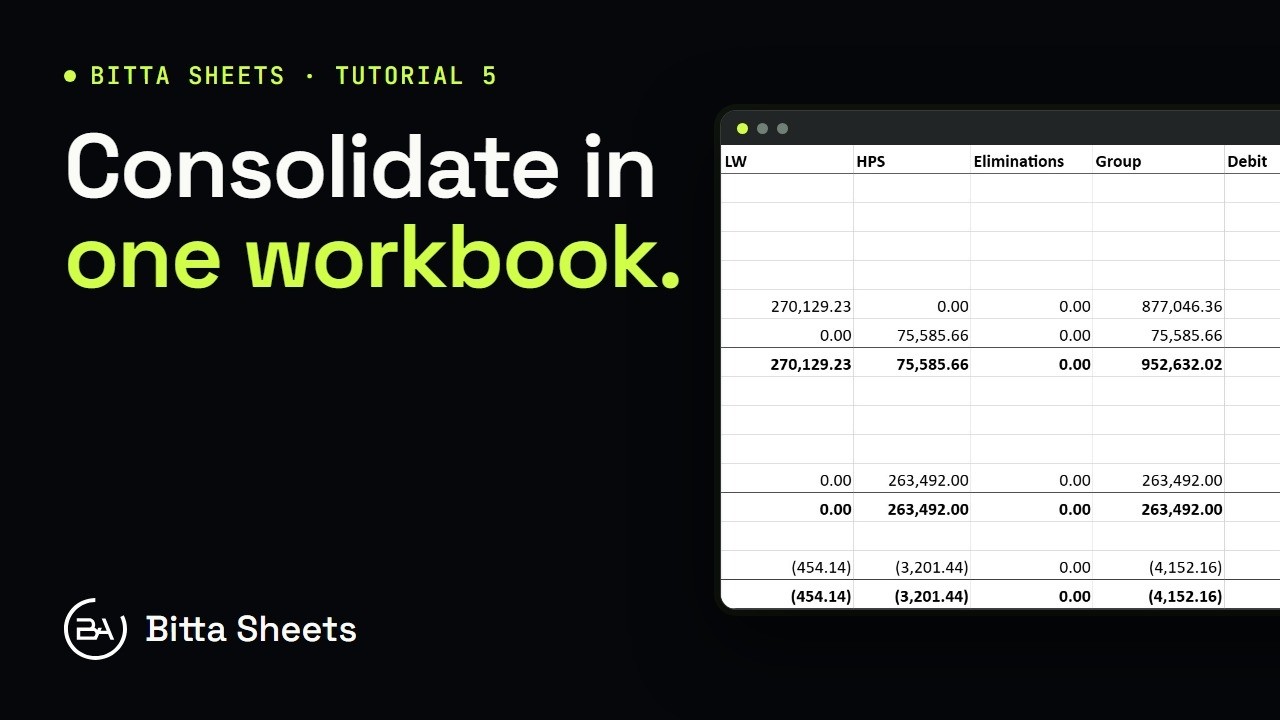 2:56Part 5Business Central Consolidation: Companies and Account Mapping