Change Business Central CSP Partner: What Actually Moves
A partner-to-partner transfer moves billing ownership. Here is what the customer supplies, what stays the same, and how to close out the old partner's access.
On this page
When a company decides to change Business Central CSP partner, the first worry is usually the system itself: the environments, the data, the extensions that took months to build. Microsoft keeps those things separate from billing. A partner-to-partner transfer moves billing ownership of the subscriptions from one Cloud Solution Provider to another. The Business Central environments live in the customer's own Microsoft Entra tenant, and nothing in Microsoft's transfer documentation describes moving them. This article covers what the transfer does, what the customer supplies, and the access cleanup afterward, based on Microsoft Learn as checked on 2026-10-28.
Three things that are easy to confuse
A Business Central customer has three separate assets in Microsoft's model.
The tenant. The customer's own Microsoft Entra tenant, identified by a tenant ID.
The environments. Production and sandbox environments, administered in the Business Central administration center for that tenant. Companies, data, and installed extensions sit inside them.
The subscriptions. The licenses, bought through a CSP partner who is the billing owner.
A partner change touches the third item and the partner access around the second. Microsoft does have an operation that moves environments: an environment transfer relinks an environment to a different Entra tenant, and Microsoft states that it doesn't move subscriptions. Microsoft's examples for it are tenant consolidations and mergers. A customer that keeps its tenant has no reason to run it.
How a partner-to-partner transfer works
Microsoft documents the process in Transfer billing ownership from one partner to another. The mechanics decide who has to act.
The new partner initiates. Customers don't start the transfer. The target partner creates the request in Partner Center, inside the customer's account, under Transfers.
Both partners must approve. The current partner selects the subscriptions to move and submits them. Microsoft will not override a transfer without the current partner's approval and does not mediate disputes. A request the current partner ignores expires after 30 days.
The relationship comes first. Before any request, the customer notifies the current partner, signs a Microsoft Customer Agreement with the new partner, and accepts the new partner's relationship request. The new partner also needs the current partner's Microsoft ID, which is that partner's tenant ID.
The customer is notified. The request names a customer email address. Microsoft sends that contact an email when the transfer is created and when it completes.
Completion is usually quick once approved. Microsoft says most transfers complete in under an hour and some take up to 72 hours while failed line items are retried.
Indirect resellers add one layer. Microsoft supports transfers between direct bill partners and indirect providers. If the current partner is an indirect reseller, its indirect provider is the billing owner and has to send or approve the request. Transfers are CSP to CSP only. Subscriptions bought directly from Microsoft are out of scope for this feature.
Check Business Central eligibility before anyone promises a date
Microsoft's documentation carries a Business Central caveat. The marketplace and software transfer page states that partners can't transfer 3PP (third-party marketplace) Business Central at this time. The overview page lists "business central items" among the items this capability can't transfer. The new partner should confirm how each Business Central line on the account was sold, and whether it is eligible, before the request goes out. Anything that isn't eligible stays with the current partner until the parties agree on another route.
What changes and what does not
The new commerce license-based transfer article is specific about the commercial effects.
What changes
The billing owner. Microsoft bills the new partner for the rest of the term. The previous partner is responsible up to the transfer date and is credited pro rata if it prepaid.
The subscription ID. The transfer creates a new subscription under the new partner, with a new ID.
What stays the same
The term. Transfers happen mid-term and aren't treated as new subscription terms, so there is no new cancellation window.
The price. The new subscription carries the original subscription's price, and promotions applied to it carry over.
Quantities and renewal settings. User counts, renewal properties, and scheduled changes are preserved.
One timing rule matters: upgrades can happen before a transfer is accepted or after it completes, not during it. A customer planning a license change at renewal should sequence it around the transfer. The Essentials vs Premium vs Team Members comparison is a useful reference for that review.
On the Business Central side, Microsoft's own documentation shows that billing and administration are separate relationships. In delegated admin access to Business Central online, Microsoft notes that a partner whose delegated permissions are removed can still manage the subscription in Partner Center but can no longer sign in to the customer's environments. The same applies to the new partner: Microsoft states that a reseller needs a separate admin relationship to manage the customer's services.
Two approvals the customer gives
The customer approves two different things, usually from two different emails.
The reseller relationship. The new partner generates a reseller relationship request in Partner Center. The customer opens the link and accepts it in the Microsoft 365 admin center, which includes accepting the Microsoft Customer Agreement. Microsoft's partner relationship guidance requires at least the Billing Administrator role for this step. This relationship lets the partner buy on the customer's behalf. It grants no admin access.
The GDAP relationship. Granular delegated admin privileges give the partner time-bound access limited to the Entra roles the customer approves. A Global Administrator approves the request in the Microsoft 365 admin center. For Business Central work, Microsoft recommends the Dynamics 365 Business Central Administrator role as the least-privileged role that grants access to the admin center and environments. Roles can't be added to an existing GDAP relationship, so a partner that needs more creates a new request. A customer that does not want to give admin roles can decline the GDAP request. The reseller relationship does not depend on it.
The customer checklist
Bitta Apps asks for these items at the start of every partner change, so that each request and each admin center URL points at the right tenant.
Tenant ID. A Global Reader or higher can find the tenant ID in the Microsoft Entra admin center under Entra ID > Overview > Properties. Microsoft also notes that the tenant ID appears on the Help and Support page in Business Central.
A written subscription list from the current partner. Product names, quantities, term lengths, billing frequency, and renewal dates. Microsoft expects partners to exchange subscription details outside Partner Center, so this list is the reference both sides check against.
Admin contacts. Who holds Global Administrator (GDAP approval and Business Central partner access settings), who holds Billing Administrator (the reseller relationship), and which mailbox should receive transfer notifications.
Written notice to the current partner. Microsoft lists this as a prerequisite, and agreement up front keeps a request from expiring unanswered.
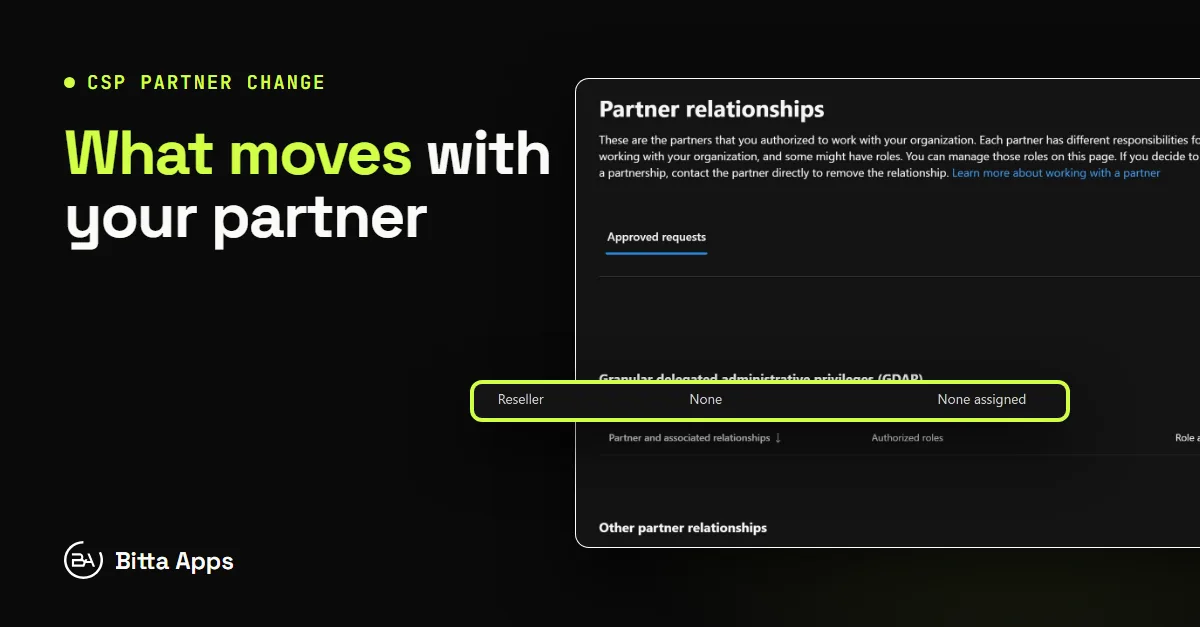
GDAP review. On Settings > Partner relationships in the Microsoft 365 admin center, the customer can see every partner and which ones hold GDAP. Approve only the roles the new partner's scope requires.
Removing the old partner's access afterward. See the next section.
Close out the old partner's access
Removing admin roles and ending a reseller relationship are separate actions. A customer removes a partner's GDAP by selecting the partner on Partner relationships, choosing Remove roles, and confirming. Microsoft notes that this does not remove the partner relationship. To end that, the customer contacts the partner.
Business Central has its own layer. In the admin center, the Partner access setting on each environment controls which partner tenants can reach it. Only internal Global Administrators can change it. Microsoft points out that this setting is preserved when a GDAP relationship ends, so a partner whose tenant-level access is later restored regains access to the environment. Microsoft's guidance is to change the setting after tenant-level access is removed, for example by turning off access for all partner tenants and allowing only the new partner.
Microsoft also lists settings to clean up when switching partners: the support contact on each environment, the tenant's notification recipients, any Application Insights key the old partner configured, and any Microsoft Entra apps the old partner authorized, including revoking their consent in the tenant.
A short environment review after the transfer gives the new partner a documented baseline of extensions, integrations, and settings. Customers still comparing options can use the questions for choosing a Business Central partner before any request is sent.
Under Microsoft's transfer rules, a partner change does not start a new term, does not reprice the licenses, and does not migrate the system. The remaining work is coordination and access hygiene, and both are easier with a checklist than without one. Customers planning a move can contact Bitta Apps to review their subscription list and access before the request goes out.
FAQ
Frequently asked questions
Does changing CSP partner move or touch my Business Central data?
The transfer operates on subscriptions and billing ownership. Business Central environments, companies, and data are administered in your own Microsoft Entra tenant, and Microsoft's transfer documentation does not describe moving them. Moving an environment between tenants is a separate admin center operation that a partner change does not require.
Can the customer start the transfer?
No. Microsoft states that customers don't initiate partner-to-partner transfers. The new partner sends the request in Partner Center after you accept its reseller relationship, and the current partner approves and submits it.
What happens if the current partner does not approve?
Microsoft will not override a transfer without the current partner's approval and does not mediate disputes. A request that is not acted on expires after 30 days, which is why the customer should notify the current partner in writing before the request is sent.
Will my renewal date or price change after the transfer?
According to Microsoft, transfers happen mid-term and are not treated as new terms. The new subscription carries the original price and promotions, and user counts and renewal settings are preserved. The subscription ID changes.
How do I remove the old partner's access?
In the Microsoft 365 admin center, open Settings > Partner relationships, select the partner, and choose Remove roles. Then update the Partner access setting on each Business Central environment and clean up the support contact, notification recipients, Application Insights key, and any Entra apps the old partner authorized. To end the reseller relationship itself, contact the old partner.
Sources
Claims in this article were checked against the following on Nov 6, 2026.
- learn.microsoft.com/en-us/partner-center/customers/transfer-subscriptions
- learn.microsoft.com/en-us/partner-center/customers/transfer-new-commerce-license-based-subscriptions
- learn.microsoft.com/en-us/partner-center/customers/transfer-marketplace-software-subscriptions
- learn.microsoft.com/en-us/dynamics365/business-central/dev-itpro/administration/tenant-admin-center-environments-move
- learn.microsoft.com/en-us/dynamics365/business-central/dev-itpro/administration/tenant-admin-center
- learn.microsoft.com/en-us/dynamics365/business-central/dev-itpro/administration/delegated-admin
- learn.microsoft.com/en-us/dynamics365/business-central/dev-itpro/administration/tenant-admin-center-manage-access
- learn.microsoft.com/en-us/partner-center/customers/request-a-relationship-with-a-customer
- learn.microsoft.com/en-us/microsoft-365/commerce/manage-partners?view=o365-worldwide
- learn.microsoft.com/en-us/partner-center/customers/gdap-introduction
- learn.microsoft.com/en-us/partner-center/customers/gdap-customer-approval
- learn.microsoft.com/en-us/partner-center/customers/gdap-obtain-admin-permissions-to-manage-customer
- learn.microsoft.com/en-us/partner-center/customers/gdap-customer-terminate
- learn.microsoft.com/en-us/entra/fundamentals/how-to-find-tenant
Work with Bitta Apps on this
Business Central apps from Bitta Apps
- Bitta Retail POSA point of sale that runs inside Business Central, so the register and the ledger are one system.See Bitta Retail POS
- Bitta CommissionSales commission calculated, explained and settled inside Business Central instead of in spreadsheets.See Bitta Commission
- Universal SearchFree global search across Business Central records that still finds matches with typos.See Universal Search