Business Central Intercompany Inbox: Why Transactions Stick
How intercompany documents move between companies, where they stall in the inbox or outbox, and the guardrails that keep the queue empty.
On this page
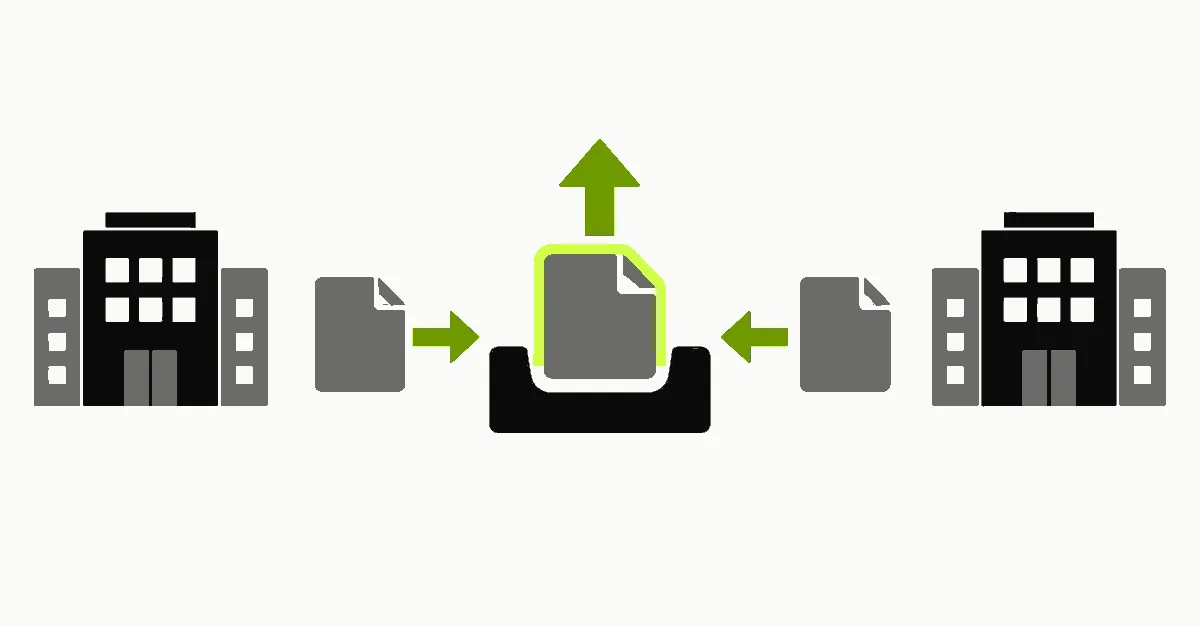
Intercompany in Business Central exists to remove double entry between related companies. One company posts a sales document or journal, and the partner company receives a matching purchase document or journal line. When a step in that chain fails, the work does not disappear. It waits in the Business Central intercompany inbox or outbox until someone acts on it. If nobody owns that queue, intercompany balances drift apart. This article explains how the flow works, according to Microsoft Learn as of October 2026, where transactions get stuck, and the guardrails Bitta Apps puts in place for multi-company customers.
How intercompany moves a transaction
Microsoft describes the setup in Set up intercompany transaction posting. Each company opens the Intercompany Setup page and defines its intercompany code, a synchronization partner, an intercompany chart of accounts, intercompany dimensions, and the list of partner companies. Every partner uses the same intercompany chart of accounts and dimensions, and each company maps its own accounts and dimensions to them in both directions: outgoing and incoming.
Customers and vendors become intercompany partners through the IC Partner Code field on the customer and vendor cards, or through the Customer No. and Vendor No. fields on the partner card. From then on, as the intercompany overview puts it, orders and invoices for those customers and vendors produce corresponding documents in the partner company.
The posting side is covered in Post intercompany documents and journals. Posting an intercompany document or journal line creates a line in the sender's outbox. Orders and return orders can be sent before posting with actions such as Send IC Sales Order. Invoices and credit memos can be sent only after they post. The receiving company then works the line from its inbox, as described in Manage the Intercompany Inbox and Outbox. Accepting a line creates a document or journal in the receiving company, and someone still has to open it and post it.
Transfer types
The IC Partner table reference shows two settings that control delivery. The Inbox Type field, which the setup steps call Transfer Type, uses the IC Partner Inbox Type enum: File Location, Database, Email, or No IC Transfer. The Data Exchange Type field uses the IC Data Exchange Type enum: Database for companies in the same database, or API for partners in another tenant or environment.
The API option needs an app registration in Microsoft Entra ID with the API.ReadWrite.All application permission for Business Central. Each partner then enables that app on the Microsoft Entra Application Card with the D365 INTERCOMPANY CE and DATA ACCESS IC CE permission sets, and the partners exchange connection details. Microsoft notes that all partners in different environments must renew the client secret before it expires. In Business Central online, File Location cannot write to a network folder. The file downloads to the user's computer instead, and Microsoft recommends Email for a more direct process.
Auto-send and auto-accept
Two toggles reduce manual handling. Auto. Send Transactions sits on the Intercompany Setup page, and Auto. Accept Transactions sits on each partner. Auto-accept also needs the Default IC Gen. Jnl. Template and Default IC Gen. Jnl. Batch fields filled in. Microsoft states that the journal lines are created for you, but not posted. For partners in the same database, auto-accepted transactions go directly to the Handled Intercompany Inbox Transactions and Handled Intercompany Outbox Transactions pages. One caution from the setup article: with auto-accept on, Business Central suppresses the warning about a purchase invoice duplicating the original purchase order, so the business needs its own process for removing those duplicates.
Where transactions get stuck
In the outbox
Without auto-send, outbox lines wait until someone runs Send to Intercompany Partner. Lines can also sit there because delivery failed: a file downloaded but never sent on, or an API connection whose client secret has expired. Check both first when a partner reports that nothing arrived.
In the inbox: mapping gaps
Many inbox problems trace back to setup the receiving company never finished. Check these, in order:
Every intercompany account used by the sender is mapped to a G/L account in the receiving company, in the incoming direction.
Intercompany dimensions and dimension values are mapped on the Intercompany Dimensions Mapping and Intercompany Dimension Values Mapping pages.
Item numbers resolve. The sender's Outbound Sales Item No. Type on the partner is Internal No., Common Item No., or Cross Reference (enum reference). The receiving company has to recognize that number through the Common Item No. field, the Vendor Item No. field, or item references.
The vendor or customer that represents the sender carries the right IC Partner Code, and the partner is not blocked.
Lines with resources, fixed assets, or item charges. Microsoft notes these purchase transactions are not fully supported, and the Line Type field arrives blank and must be filled in manually.
The Intercompany Setup Diagnostics pane on the Intercompany Setup page shows tiles for missing components. It is the fastest first check.
In the inbox: extension validation
Accepting an inbox line runs code. The ICInboxOutboxMgt codeunit (ID 427), which Microsoft describes as the core management codeunit for intercompany inbox and outbox operations, creates the sales header, purchase header, or journal lines in the receiving company. It publishes integration events along the way, such as OnCreateSalesDocumentOnBeforeSalesHeaderInsert, OnAfterCreatePurchDocument, and OnBeforeCreateJournalLines. The IC Inbox Transaction table also publishes OnBeforeInboxCheckAccept.
Payment and other ISV extensions can subscribe to these events, or to the insert and validate events on the sales and purchase document tables, and add their own validation when intercompany documents are created. Custom guardrails do the same. A rule written for documents keyed by hand may not hold for a document built from a partner's data. When subscriber code raises an error, AL execution stops and the changes in that database transaction roll back, as the AL error handling overview describes. The accept does not complete, and the line is still waiting in the inbox.
To find which extension raised the error, read the error dialog, then query Error method telemetry. Event RT0030 records the extension name, publisher, version, company name, and AL stack trace for each error dialog.
Returned transactions
If a partner rejects a line and returns it, Microsoft's guidance is to cancel it in your inbox and post a correction or reverse the original journal or document. If someone accepted a line and then deleted the resulting document instead of posting it, the Re-create Inbox Transaction action on the Handled IC Inbox Transactions page puts it back in the inbox.
A guardrail checklist
Bitta Apps uses this checklist on multi-company engagements.
Mapping completeness before go-live. Map accounts and dimensions in both directions, set the item number type for every partner, confirm IC Partner Codes on customers and vendors, and fill in the default IC journal template and batch. Clear every tile in Intercompany Setup Diagnostics. Then send one of each document type you use (order, invoice, credit memo, return order, journal) between every pair of partners.
A named owner who reviews the inbox and outbox daily. Filter the Intercompany Inbox Transactions page by Transaction Source and Intercompany Partner Code, and work returned lines the same day. At period end, compare against the Intercompany Transactions report. The same ownership model applies to background work, as covered in the job queue support handoff guide.
Test intercompany flows in a sandbox after every extension update. A new version of a payment or document extension can add a subscriber that the last test never exercised. Run the document set from item 1 in a sandbox copy before the update reaches production. The Business Central upgrade readiness checklist and the environment snapshot guide cover the sandbox mechanics.
Document which extensions subscribe to intercompany events. Keep a list of every extension that subscribes to ICInboxOutboxMgt events or to sales and purchase header events, with its owner and what it validates. For custom guardrails, decide explicitly whether each rule applies to documents created from the inbox, and test both paths. The AL event subscriber patterns article covers how to keep subscribers predictable.
Alert on errors, and track the secret. Route RT0030 telemetry for the intercompany companies to an alert, as described in the AL telemetry and Application Insights guide, and put the cross-environment client secret expiry date on a calendar with a named owner.
Looking ahead
Intercompany works well when the setup is complete and the inbox has an owner. Stuck transactions usually trace back to a missing mapping, an expired credential, or an extension that validates documents its authors never tested from the inbox. Each of those is visible in advance. Run the checklist again whenever a company, environment, or ISV extension is added. Bitta Apps reviews intercompany setups and extension subscribers for multi-company Business Central customers, and you can start that conversation through the contact page.
FAQ
Frequently asked questions
What is the Business Central intercompany inbox?
The Intercompany Inbox Transactions page lists transactions that partner companies send to you. You accept, return, or cancel each line, and accepted lines become documents or journal lines in your company that you then post.
Does auto-accept post intercompany transactions automatically?
No. Microsoft Learn states that with Auto. Accept Transactions turned on, the journal lines are created for you but not posted. Auto-accept also needs a default IC general journal template and batch on the Intercompany Setup page.
Why does accepting an intercompany document fail when the setup looks complete?
Accepting a line runs code that creates the sales or purchase document. Extensions subscribed to intercompany or document events can add validation at that point, and an error in that code stops the accept. Error method telemetry shows which extension raised it.
Can intercompany work between different Business Central environments?
Yes. The IC Data Exchange Type supports API for partners in another tenant or environment. It requires a Microsoft Entra app registration, the Microsoft Entra Application Card in each company, and a client secret that partners renew before it expires.
What happens when a partner returns an intercompany transaction?
Microsoft Learn says to cancel the returned line in your inbox and then post a correction or reverse the original journal or document in your company.
Sources
Claims in this article were checked against the following on Oct 28, 2026.
- learn.microsoft.com/en-us/dynamics365/business-central/intercompany-manage
- learn.microsoft.com/en-us/dynamics365/business-central/intercompany-how-setup
- learn.microsoft.com/en-us/dynamics365/business-central/intercompany-how-manage-intercompany-inbox
- learn.microsoft.com/en-us/dynamics365/business-central/intercompany-how-work-documents-journals
- learn.microsoft.com/en-us/dynamics365/business-central/application/base-application/table/microsoft.intercompany.partner.ic-partner
- learn.microsoft.com/en-us/dynamics365/business-central/application/base-application/enum/microsoft.intercompany.partner.ic-partner-inbox-type
- learn.microsoft.com/en-us/dynamics365/business-central/application/base-application/enum/microsoft.intercompany.dataexchange.ic-data-exchange-type
- learn.microsoft.com/en-us/dynamics365/business-central/application/base-application/enum/microsoft.intercompany.outbox.ic-outb.-sales-item-no.-type
- learn.microsoft.com/en-us/dynamics365/business-central/application/base-application/codeunit/microsoft.intercompany.icinboxoutboxmgt
- learn.microsoft.com/en-us/dynamics365/business-central/application/base-application/table/microsoft.intercompany.inbox.ic-inbox-transaction
- learn.microsoft.com/en-us/dynamics365/business-central/dev-itpro/developer/devenv-al-error-handling
- learn.microsoft.com/en-us/dynamics365/business-central/dev-itpro/administration/telemetry-error-method-trace