Bitta Retail POS · Full demo · 24:16 · YouTube
Bitta Retail POS Full Demo: One Store, One Day in Business Central
What this video covers
One outdoor store in Chicago, one day at the counter, from the install to the books, all inside Microsoft Dynamics 365 Business Central.
Set up Bitta Retail POS, configure items, cashiers and the card reader, sell at the counter, run the whole shift, and close the day into the books. Every screen is the real app.
This is the five-part Bitta Retail POS tutorial series joined into one video. Each part is also in the playlist on its own.
Transcript
One outdoor store in Chicago. One day at the counter, from the install to the books. This is Bitta Retail POS, inside Business Central. Install on Friday. Sell on Saturday. This is the register at Ridgeline Outfitters, set up in one sitting. Here's how.
Ridgeline Outfitters is an outdoor gear shop in Chicago. The app is installed, and so far nothing in this company has changed. Installing never creates data. You decide when the store exists. Everything starts in one place. Search for Assisted Setup, and choose Set Up Bitta Retail POS. The first page names what your cashiers will see. The store gets a short code, MAIN, and the name your customers know: Ridgeline Outfitters. Link it to the Business Central location the stock comes from, so a sale at the counter takes items off the right shelf. This is a US company, so tax is sales tax. Pick the tax area the store sits in, Chicago. Prices on the shelf don't include tax here, so leave that switch off. Then the register itself: Front Counter. You can add more registers and stores later. Today you need one.
Next, decide how this register sells. Standard Checkout is the quick counter: scan, take payment, hand over a receipt, with parking, returns and cash work built in. The other starting point adds pickup orders, which a gear shop doesn't need. Your choice is saved as a register profile, called Checkout. It's yours, so you can change it later without running setup again. Then the optional services. Each one can wait, and nothing asks for a key or a password until you choose it. Card readers get their own chapter in the next episode, so leave cards for later. Turn on receipt printing. Receipts open in the browser, so there's no printer to install today. Keep the starter barcode rules, so the register reads barcodes from day one, including labels with the price built in.
This is the page that saves your Saturday. Before anything is created, the wizard checks the Business Central setup the register posts through. The walk-in customer, posting groups, tax, payments and number series. A row that needs attention has an assist button right next to it. You fix it here, without leaving the wizard. One assist creates the walk-in cash customer, and maps it to a real Business Central customer, with posting groups copied from one that already posts. The same click fixes the posting groups, the tax setup and the number series. Every tender needs somewhere to settle. The wizard won't guess an account, so you choose one, and every payment lands in the books at the end of the day. Cashier sign-ins can wait. Sam, Jamie and Alex join in the next episode.
The last page puts every choice on one screen: store and register, the profile, payments, printing and tax. Choose Finish. Only now are the store, the register and the profile created. Your first register is ready. And the license? There's nothing to enter. The thirty-day trial runs from first use, with every feature on and no limit on registers. Open the register. Front Counter, at Ridgeline Outfitters, waiting for its first cashier. Friday night, the store is set up. Saturday morning brings the cashiers, and what goes on the shelves.
Your items, prices and barcodes are already in Business Central. This is how the register at Ridgeline Outfitters uses them, from the first tile to the card reader. Here's how.
Last time, the setup wizard built the store and the Front Counter register. It's ready to sell, but it has nothing to sell yet. Start with categories. Each one becomes a tab on the register, with its own tile color. Apparel, Hydration, Trail Food, Camp and Gear. The sort order lines the tabs up from left to right. Now the items. Each POS item is the tile your cashier taps, and it links to the Business Central item you already have. Here's the Trail Tee. Give it a name and a category, then map it to item one thousand. The status turns to Mapped. From here on, Business Central owns the price, the stock and the posting. That matters at the end of the day. Only mapped items post to sales invoices, so map every item before you open. Then the rest of the catalog. Give each item a name and a category, and type its Business Central item number. Do that for every item, and the whole catalog sells at Business Central prices. Last, pick your favorites. They get a row of their own above the tabs, for the things you sell all day.
The Trail Tee comes in small, medium and large. Those sizes are variants on the Business Central item. The POS item reads them from there, so there's no second list of sizes to keep. Barcodes work the same way. Each one is an item reference in Business Central, and it can point to an exact size. When a cashier scans the medium, the line lands as a medium. No picker, no typing. Tap the tile instead, and the register asks which size.
Every sale belongs to a person. That's what POS users are for. Sam Ortiz and Jamie Chen are cashiers. Each one links to a salesperson, so their name follows the sale into the posted documents. Give each person a discount limit. Ten percent is plenty for a cashier. Alex Rivera is the supervisor. Tick one box, and Alex can approve bigger discounts and price overrides for the team. Then give everyone a PIN, four to eight digits. It's stored as a hash, so nobody can read it back, not even you. On a shared register, each cashier signs in with their own PIN, so the till always knows who's at the counter.
Now, how people pay. The wizard already made the basics: cash, an external card machine, vouchers and on account. Cash gets quick buttons for common bills and works out the change. On account needs a customer with a Business Central account, and the invoice stays open in receivables. Each tender can post to its own settlement account, so the money lands in the right place at the end of the day. Now the card reader. Give it a card tender of its own, so reader sales stay apart from the old card machine. In POS Setup, choose Stripe as the payment provider, and point it at the new card tender. Paste your Stripe secret key. It goes into secure storage for this company, and it's never shown again. Then pair the reader with the register. Copy the reader's ID from your Stripe account, and paste it on the Front Counter. That's the whole setup. The register now has a Pay card button.
Last, receipts. A register can print through the browser, a cloud thermal printer, a USB printer, or one on your network. Ridgeline starts with the browser, which prints or saves a PDF. You can move to a silent thermal printer later, in one place. Add a header and a footer, like your returns policy, and every receipt carries it. Let's try it. Sam signs in with a PIN. Trail Tee in medium. Scan a bottle. Both prices come straight from Business Central. Pay card. The customer taps, and the reader approves it.
The receipt shows the size, the card and your footer. Items, people and payments, all from the Business Central you already run. A card and cash split, a club account, a price match and a return. One register, and every sale lands in Business Central. Here's how Sam keeps the line moving.
The register is a page inside Business Central, so there's no second system to sync. When nobody's using it, it stays locked. Sam taps in a PIN, and the till is ready. From here, every sale carries Sam's name. First customer. A trail tee. Tap the tile, and because the tee comes in sizes, the register asks which one. Medium. The size rides along on the line, so stock and sales reports stay exact. Next, a water bottle. Scan the barcode, and the price and tax come straight from Business Central. Scan something the store doesn't carry, and a red note appears beside the scan box. No pop-up to close, so the next scan goes straight in. Can't find a tile? Type a few letters. Trail mix, added. Then the question every cashier hears. How much is the headlamp, and do you have one? Switch on price check and tap it. You get the price and the stock on your own shelf first, and the sale doesn't change. It's a yes. Add it to the sale. Four items, and the total is right there: eighty-three dollars and sixty-four cents.
Then you hear it. "My wallet's in the car." And the line is still out the door. Park the sale. The basket is saved, and the register starts a fresh one, so two customers never end up on one bill. The Parked button counts what's waiting, so nothing gets forgotten at the end of the rush. Next customer: a trail map and a granola bar. Cash. Tap the bills you're handed, a twenty, and the change due is the biggest number on the screen. Eight dollars and fifty-two cents. Done. The register is already on a new sale. The first customer is back. Open Parked, and pick the basket. Every line comes back, exactly as it was.
Now the payment. "Put eighty on the card, and I'll pay the rest in cash." Key in eighty, and tap Pay card. The card reader takes it from here. The customer taps their card. The register follows the reader the whole way, and the charge comes back approved. Nobody keys the amount into a separate machine, so the till and the card never disagree. Done. The card payment is locked in, and three sixty-four is left to pay. A five in cash. Change due, one thirty-six. One sale, two payments, and Business Central knows exactly how every dollar came in.
Need a copy? Find the sale in the sales list and reprint it. The receipt comes back as a PDF, with the card and the cash both on it. Ridge Runners Hiking Club are regulars, and they buy on account. Tap Customer, and type a few letters of the name. Their name on the screen opens the whole picture. Balance, credit limit, and what they bought last time, right at the counter. Available credit shows in green, and the panel says on account is available. If the club were over its limit, you'd know before you rang up a thing. Today it's two headlamps and a camp stove. They found the stove cheaper down the road. Sam gives twenty percent off as a price match, and picks the reason. That's over a cashier's limit, so the register asks for a supervisor. Alex enters a PIN, and the approval is kept with the reason. The total is now one hundred and two dollars, and it goes on the club's account. The register checks the credit limit before it charges a cent. At the end of the day, this becomes an open invoice, waiting to be paid.
Ten minutes later, the map customer is back. Turns out they already had one. Tap Return, and pick the original sale. You can return a sale the same day, before the books are posted. Every return starts from the original receipt, never a blank form, so nobody refunds something that wasn't bought here. Choose the map and a reason. Nine eighteen goes back to the customer. The return is tied to the receipt, so the shift and the books see the same refund.
Card and cash, a club account, a price match and a return. One register, all inside Business Central. Nine o'clock at Ridgeline Outfitters. The doors are locked, and the store manager has one question. Does the drawer match? Today it does, to the cent. Here's how a shift gets there.
A shift is one cash drawer, on one register, from the first sale to the final count. Everything in between is counted against it. Sam is first in. The register starts locked, and Sam's PIN opens it. The first customer is at the counter. Sam scans the item and taps Tender, and the register stops. This store takes no money until a shift is open. Choose Show New Shift. The shift card opens with the store, the register and Sam already filled in. Sam counts the cash in the drawer, a hundred and fifty dollars, and enters it as the opening float. Open Shift. The shift is open, and the cash actions switch on. Back at the register, Sam taps Tender again. The customer pays cash, and the sale lands on Sam's shift. The status bar shows it. From here on, every sale that completes on this register counts toward this drawer. Cash and card, each tracked on its own. A couple more customers before lunch. One pays by card, one in cash.
Customers aren't the only ones moving cash. It comes and goes all day, and every bit of it should leave a trace. The till is short of small bills. Sam taps Shift on the status bar, and the shift card opens right over the register. Pay In. Fifty dollars in change, brought over from the safe. Then a courier needs twenty dollars for a delivery. That's a pay out, and a pay out always needs a reason. Petty cash. Every amount goes in as a positive number. The register knows a pay out takes money away. By mid-afternoon the drawer holds more cash than it should. Safe Drop. One hundred dollars goes into the safe, with its reason: bank drop. The shift card keeps count. Three movements so far, and their net effect on the drawer, updated as each one is saved. Sometimes the drawer just needs to open. A customer wants change for a twenty. Sam taps No Sale. No money moves, but the opening is recorded on Sam's shift. That's the trail loss prevention asks for. None of these entries can be changed or deleted. A mistake is fixed with an opposite entry, so the history always adds up.
After lunch, Sam takes a break and Jamie covers the counter. Sam taps Lock. The PIN pad covers the whole register, so nothing underneath can be touched. Switch cashier. Pick Jamie, and Jamie enters a PIN. The register changes hands without closing the page. The status bar now shows Jamie, on the same shift. Jamie checks a price for a customer without ringing anything up.
The drawer is still Sam's. The cashier who opened the shift is the one who counts it and closes it. When Sam is back, it's the same move in reverse. Lock, switch, Sam's PIN, and Sam is at the counter again.
Mid-afternoon, you want to know how the drawer is doing, without closing anything. On the shift card, print the shift report. While the shift is open, it comes out as an X report: a snapshot you can repeat as often as you like. Here's the opening float. And here's what each tender should be holding right now. Then every cash movement. The pay in, the pay out, the safe drop, and the no sale, counted but never an amount. Expected cash is arithmetic you can check yourself. The float, plus cash sales, plus the pay in, minus the pay out and the safe drop. Printing an X report changes nothing. The shift stays open, and Sam keeps selling.
Closing time. The last customer is out, and Sam counts the drawer. Tap Shift. Under Tender Counts, every tender gets its own row: cash, card, voucher and other. Sam declares what's in the drawer, cash first. The difference appears as soon as the count goes in. Five dollars short. Before anything closes, Sam counts again. A five was stuck under the coin tray. Enter the new count, and the cash difference is zero. Card goes in from the card total. Voucher and other get a zero. Every row needs a number, even an empty one, so nothing gets skipped by accident.
Close Shift. The differences are stamped, the sales are added up, and the shift is closed. Closing reconciles the drawer. Nothing is posted yet. That happens at end of day. Print the report one more time. The shift is closed, so now it's the Z report, the final record of the drawer. Expected, counted, and the difference. Cash, zero. Card, zero. Every tender, zero. And in the shift list, this shift's over or short is empty: it balanced. The one that came up two dollars short shows in red. Nine o'clock. Does the drawer match? It does, and the Z report proves it.
The till and the books agree. Here's the proof. Last time, the shift closed and the drawer matched to the cent. Now it's your turn, in the back office. One job is left: post the day to Business Central, with every dollar in the right account.
Start with two settings in POS Setup. End of Day is set to block while any drawer is still open, so a live till is never posted by mistake. And per-tender settlement is on, so cash and card each land in their own account. On your role center, the backlog tile counts the sales that are complete but not yet posted. Open End of Day. The posting date is today, and this run posts invoices, not orders. Before anything is written, you get a preview. It shows the sales in scope, how they'll be grouped, the store and register, and the return. A sale with no customer, or an item that isn't mapped, would be named right here, with the reason. Everything is clean. Choose yes.
The result tells you exactly what posted. End of Day posts through Business Central's own sales posting. No side ledger, no export, no import. Instead of one invoice per receipt, sales are grouped by customer, store, register and payment method. So the walk-in cash sales share one invoice, the card sales share another, and the hiking club gets its own. A return is never netted against a sale. It posts as its own credit memo. On the POS sales list, every sale now reads Posted, next to the invoice that covers it. Each register line is copied one to one onto the invoice, so any receipt traces straight to the books. The daily archive keeps one summary row per batch, with its totals, tax and registers. Run End of Day again for the same date, and nothing posts twice.
Now the money. Take the sale that was paid part cash, part card. Per-tender settlement writes one entry for each payment method on the posted invoice. Cash settles to the drawer account. Card settles to card clearing, ready to match the processor's deposit. Each entry posts a payment against the invoice, and closes it. On account is different. It has no settlement account, on purpose, so it stays open for the club to pay later. The return settles as a refund, with a negative amount. The slices must add up to the invoice total, to the cent. If they don't, nothing settles, and the entry says why. Anything that fails waits here, and one action tries it again, safely. Today, nothing is waiting.
Now look at the books the way your accountant will. Posted sales invoices. Standard Business Central documents, numbered in your own series. Open one. The items, quantities, prices and sales tax are exactly what rang up at the counter. The customer ledger tells the rest. The cash and card invoices are closed by their payments. The club's invoice stays open, for exactly what it charged to its account. And the credit memo for the return sits beside them, refunded and closed.
For the manager, the checks for the day live in one place: the POS Report Center. It's a full Report Center, grouped into sales, finance, operations and audit. Start with Daily Reconciliation. Pick the date, show it by shift, and include settlement. Each document total appears once, even when it was split across tenders. The shift shows its float, expected cash, counted cash, and no variance. The tax summary is built from the tax stored on each sale, so a later rate change never restates a finished day. The settlement report traces each batch from the register, to the posted invoice, to every tender payment. Returns and refunds get their own report. The discount audit shows every override, and who approved it.
When you just want to see how the store did, open POS Analytics. Live, inside Business Central, with nothing to export. Pick a period. Up top: completed sales, gross sales, average basket and returns. Tender mix shows how customers paid. Top items shows what sold. The cashier leaderboard shows who sold it. Cash variance lists every closed shift, expected against counted. And margin uses the actual cost from the posted entries, not an estimate. So, back to tonight. The drawer was counted, and the day is posted as standard invoices. Every tender is settled to its own account, and the only open balance is the one that should be. The till and the books agree. Now you can prove it. Bitta Retail POS. Every sale and every shift, right in Business Central. The guide is linked below.
More Bitta Retail POS videos
All videos 1:07OverviewPoint of Sale for Business Central
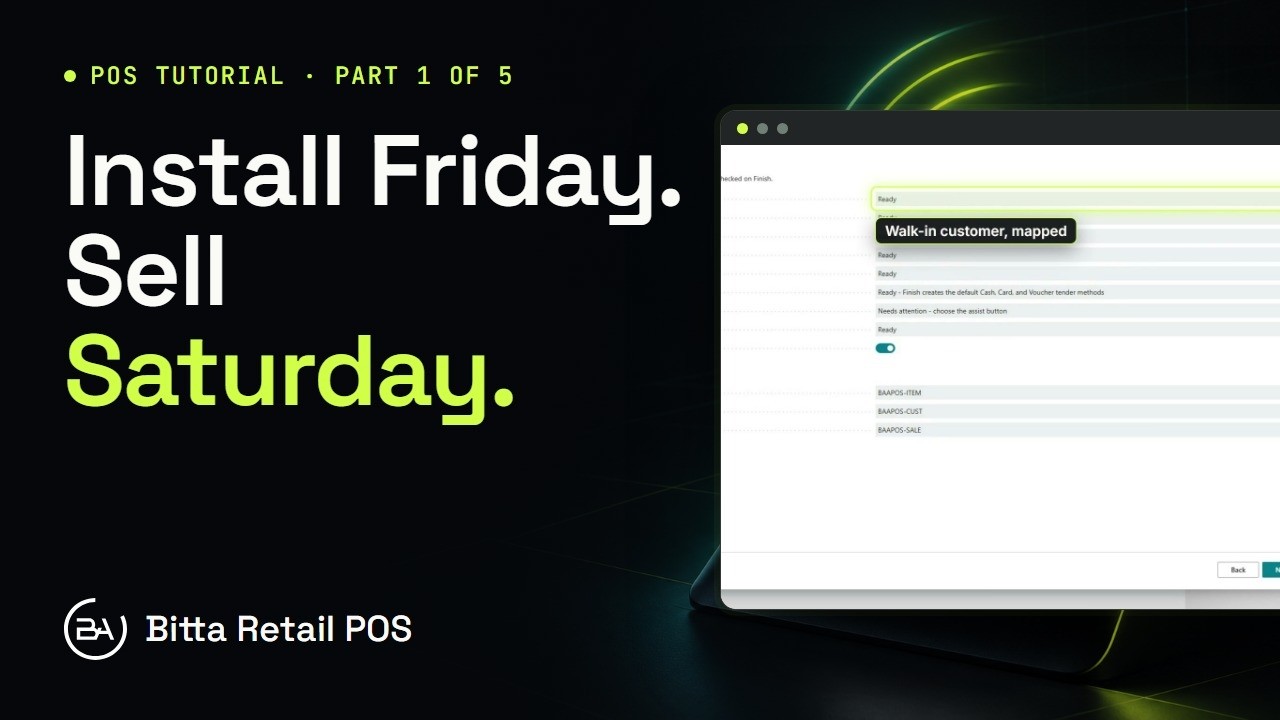 3:41Part 1Set Up a Store in Business Central
 4:34Part 2Items, Cashiers and Tenders in Business Central
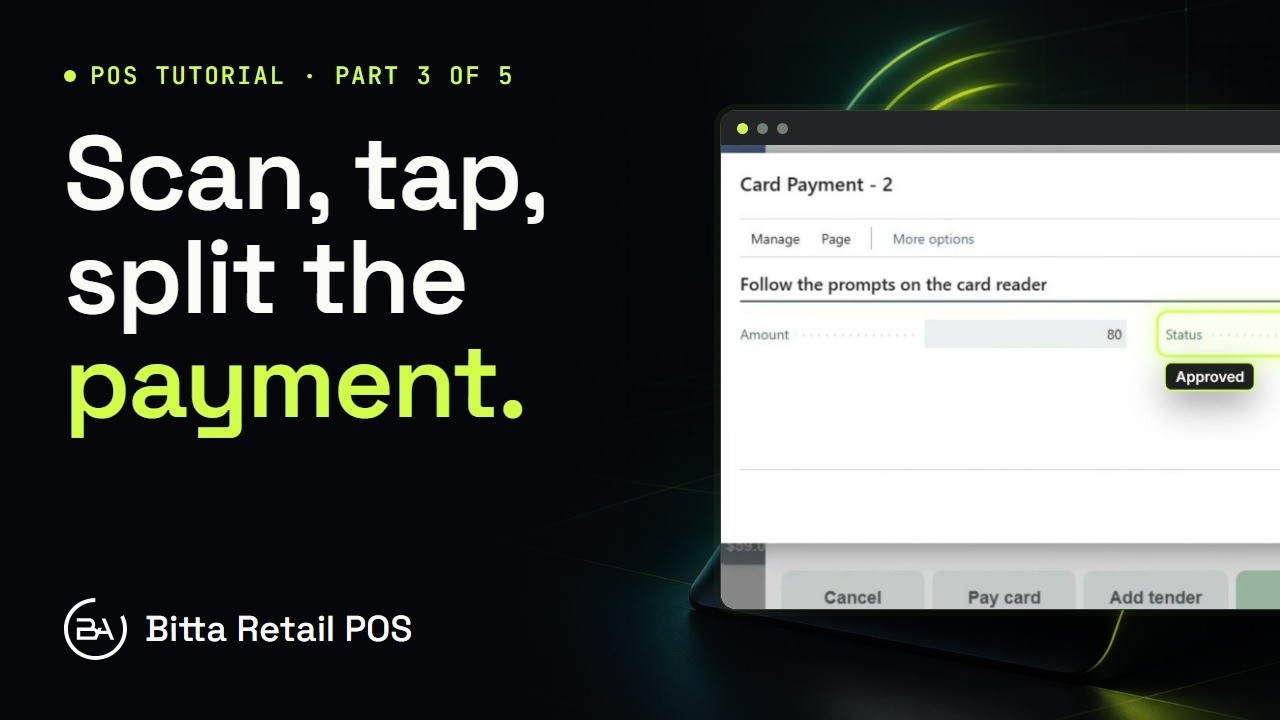 4:52Part 3A Sale at the Counter in Business Central
 5:46Part 4Cash Drawer Shift, X and Z Reports in Business Central
 5:17Part 5End of Day and Reports in Business Central