Universal Search · Part 1 · 3:12 · YouTube
Install Universal Search in Business Central
What this video covers
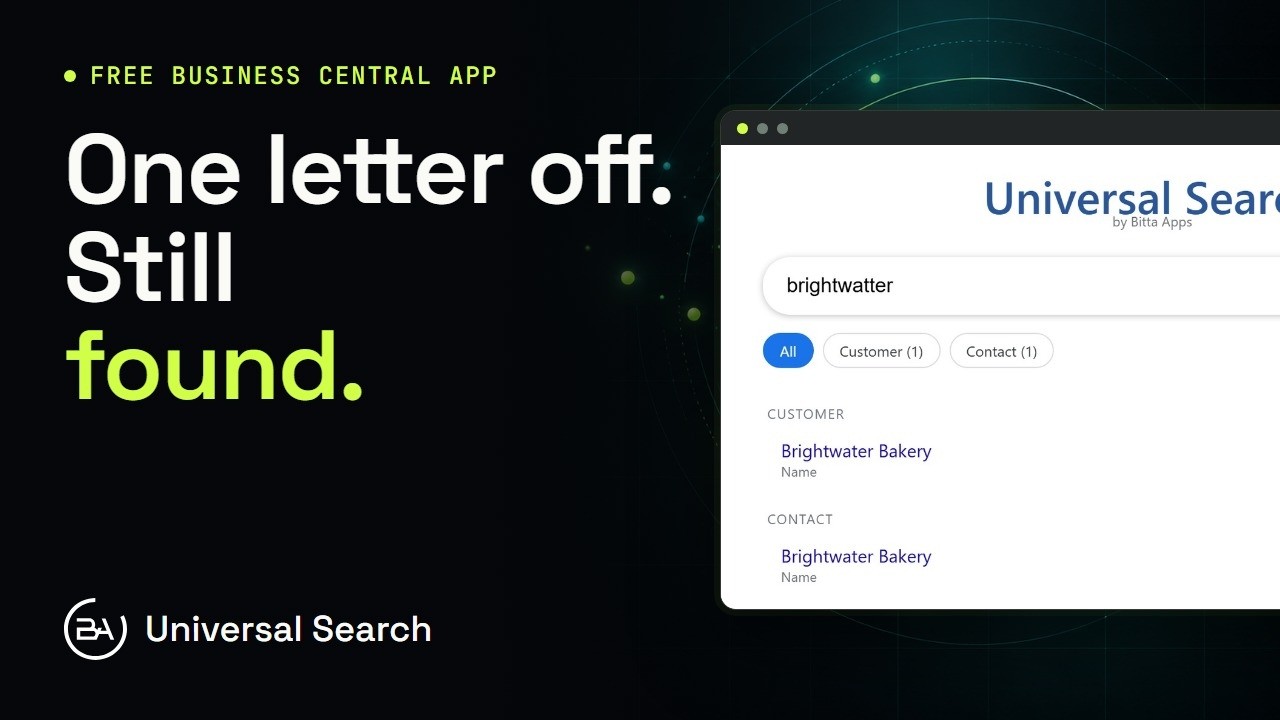
Bitta Universal Search is free on Microsoft Marketplace. In about ten minutes you go from install to a first search that forgives typos.
Part 1: install the app, give BAA SEARCH ADM to admins and BAA SEARCH to everyone who searches, and activate the free license with the assisted setup. If outbound calls are blocked, search keeps working in a grace period.
Part 1 of 3 in the Universal Search tutorial series. Next: choose what's searchable.
Transcript
Bitta Universal Search is free. In about ten minutes you go from install to a first search that forgives typos. Here's how. Northwind Supply is a wholesale food and equipment distributor. At the sales counter, Lena finds customers by sound and by half a name. Today, you set things up for her. Start on Microsoft Marketplace. Search for Universal Search, choose Get it now, and install it into your Business Central environment. Here it is in Extension Management: Universal Search, by Bitta Apps. The install adds a setup page, the search page, and six starting index rows: item number and description, customer number and name, vendor name, and contact name. Indexing stays off after install. Nothing is read or stored until you turn it on.
Next, permissions. There are two permission sets, and each person needs one of them. BAA SEARCH ADM is for the people who set the app up. It includes everything a searcher has, plus the setup page, the index configuration and activation. BAA SEARCH is for everyone who searches. Lena gets this one. Search never opens a door that's closed. A table a user can't read stays out of their results, chips and counts included.
Now open Assisted Setup and choose Set up Universal Search. The wizard is about one thing: activating the free license. Activation registers this environment for a free fifty-year license. It asks first. Read what gets sent, then switch on the consent. The wizard lists every item it sends, and links to the privacy policy, before anything goes anywhere. Confirm the company name and a contact email. Both are required. Both fields start from Company Information. Fill in whatever is missing. Choose Activate. A moment later, the license is active.
If your network blocks outbound calls, or you'd rather not send anything, nothing breaks. Search keeps working in a grace period, and you can activate later from the setup page.
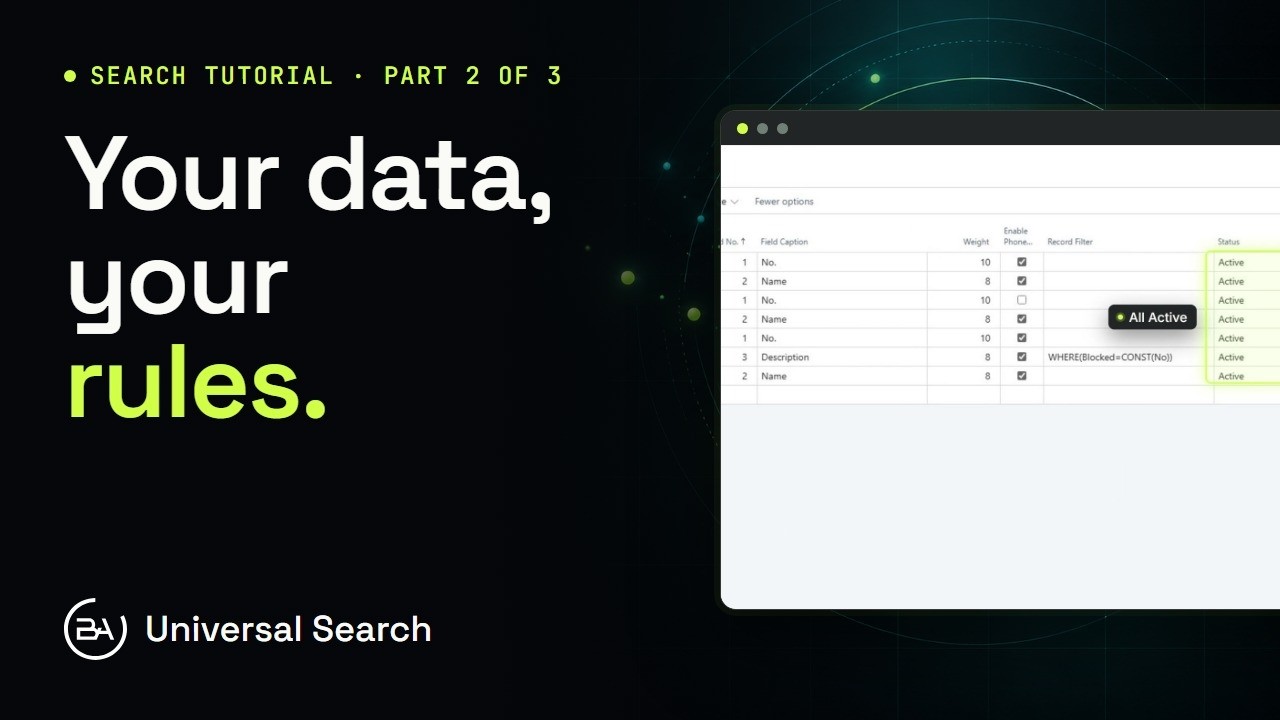
Open Universal Search Setup to check. The license section shows the status, Activated, the expiry date, and the company and email you registered. Under General, Indexing Enabled is still off. That's on purpose. Nothing is indexed until you say so. And Index Configuration already holds the six starting rows, with weights that put numbers and names first. Each row starts as Pending rebuild, with nothing indexed yet. That changes the moment indexing starts. Installed, permissions given, license active. Ten minutes, and nothing to pay. Next, you choose what's searchable, and build the index.