Universal Search · Full demo · 9:58 · YouTube
Universal Search Full Demo: Forgiving Search in Business Central
What this video covers
Lena knows the customer is in there. Bitta Universal Search finds it however she types it.
Install and activate the free app, choose which tables and fields are searchable, then search with typos, missing spaces, word order, fragments and sound-alikes, narrow with chips, open the card from the keyboard, and see permissions at work. Every screen is real Business Central.
This is the three-part Universal Search tutorial series joined into one video. Each part is also in the playlist on its own.
Transcript
Lena knows the customer's in there. She just can't spell it. By the end of this demo, she'll find it however she types it. This is Bitta Universal Search, end to end, in three parts. Part one. Install and activate.
Northwind Supply is a wholesale food and equipment distributor. At the sales counter, Lena finds customers by sound and by half a name. Today, you set things up for her. Start on Microsoft Marketplace. Search for Universal Search, choose Get it now, and install it into your Business Central environment. Here it is in Extension Management: Universal Search, by Bitta Apps. The install adds a setup page, the search page, and six starting index rows: item number and description, customer number and name, vendor name, and contact name. Indexing stays off after install. Nothing is read or stored until you turn it on.
Next, permissions. There are two permission sets, and each person needs one of them. BAA SEARCH ADM is for the people who set the app up. It includes everything a searcher has, plus the setup page, the index configuration and activation. BAA SEARCH is for everyone who searches. Lena gets this one. Search never opens a door that's closed. A table a user can't read stays out of their results, chips and counts included.
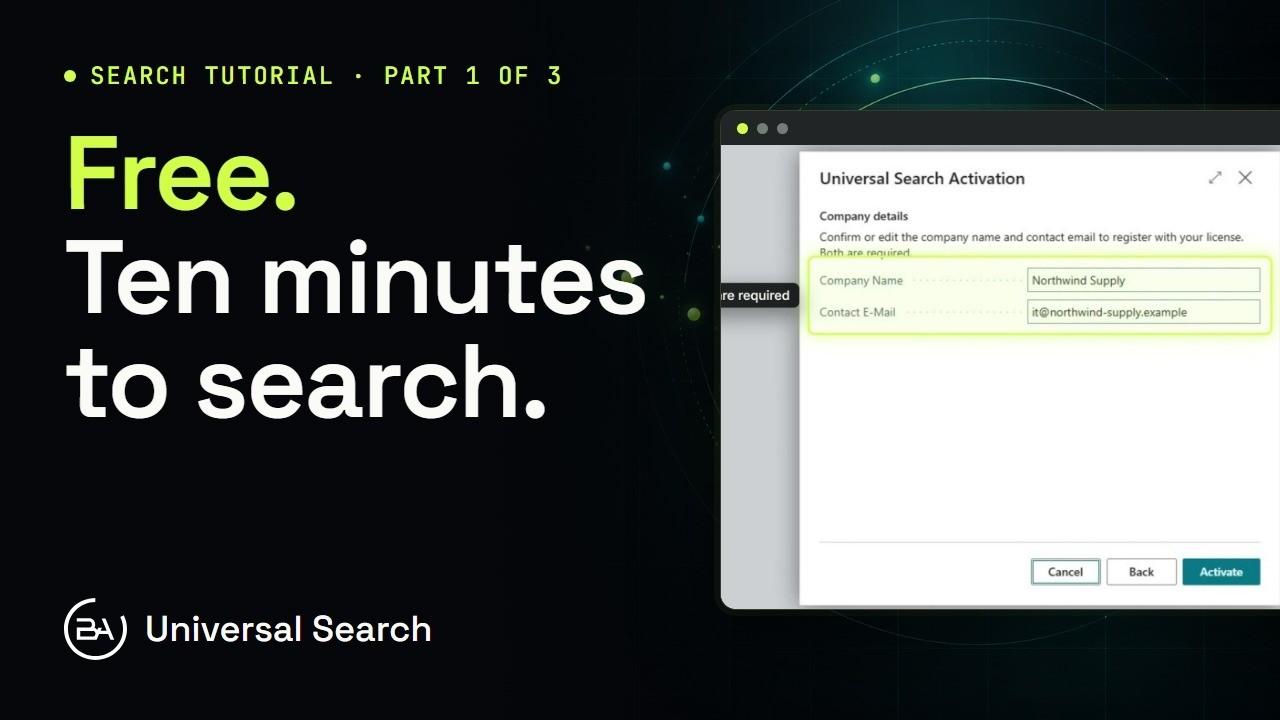
Now open Assisted Setup and choose Set up Universal Search. The wizard is about one thing: activating the free license. Activation registers this environment for a free fifty-year license. It asks first. Read what gets sent, then switch on the consent. The wizard lists every item it sends, and links to the privacy policy, before anything goes anywhere. Confirm the company name and a contact email. Both are required. Both fields start from Company Information. Fill in whatever is missing. Choose Activate. A moment later, the license is active.
If your network blocks outbound calls, or you'd rather not send anything, nothing breaks. Search keeps working in a grace period, and you can activate later from the setup page.
Open Universal Search Setup to check. The license section shows the status, Activated, the expiry date, and the company and email you registered. Under General, Indexing Enabled is still off. That's on purpose. Nothing is indexed until you say so. And Index Configuration already holds the six starting rows, with weights that put numbers and names first. Each row starts as Pending rebuild, with nothing indexed yet. That changes the moment indexing starts. Installed, permissions given, license active. Ten minutes, and nothing to pay. Part two. Choose what's searchable.
After install, indexing is off. Search for brightwater, and it comes back with no results. Open Universal Search Setup and choose Start Indexing. It switches indexing on, and schedules a background job that refreshes the index every minute. The message says it plainly. Indexing runs in the background, and you can keep working.
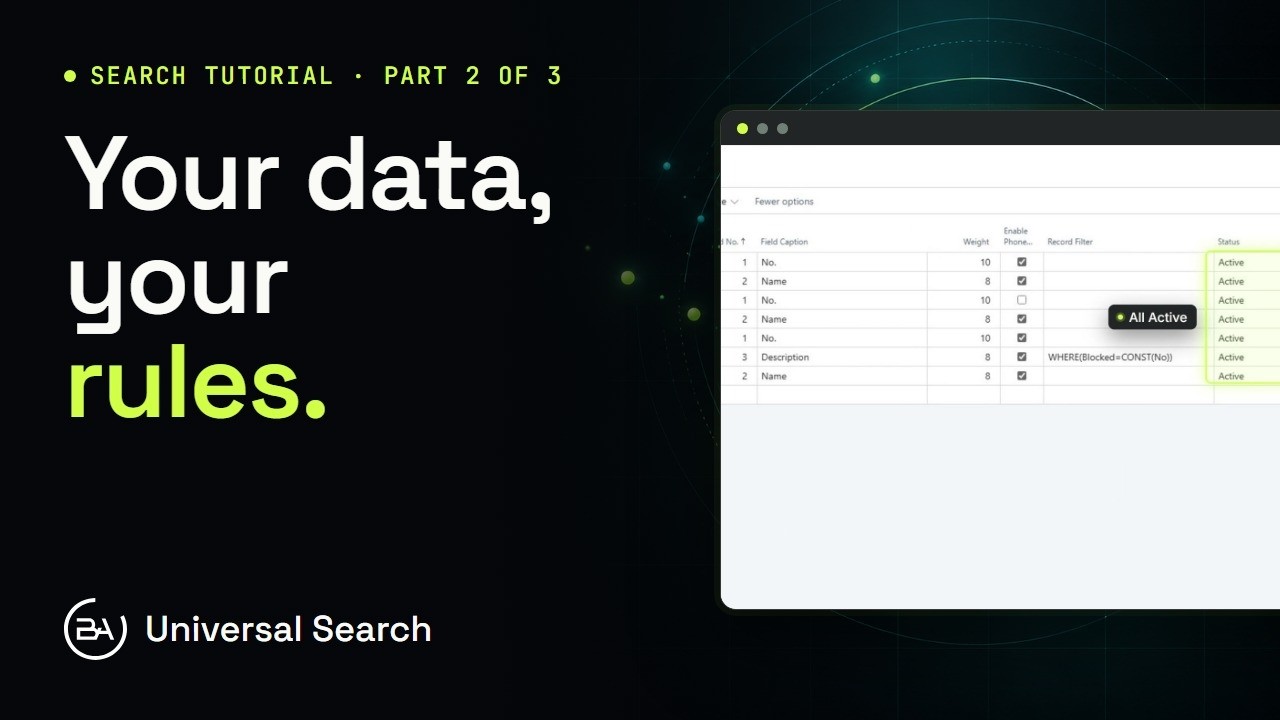
Now open Index Configuration. Each row is one table and one field. The six starting rows cover items, customers, vendors and contacts, and the background job has already indexed them. Northwind's buyers quote vendor numbers, so add a row: the Vendor table, and its number field. Any text or code field can go in. Type the table and field numbers, and the captions fill in by themselves: Vendor, No. Weight runs from one to ten. It's how much a match in this field counts. Number fields get ten, and names get eight. Enable Phonetic turns on sound-alike matching for a field. It's right for names. A vendor number never sounds like anything, so switch it off. A record filter decides which records are indexed at all. On items, Blocked equal to No keeps blocked items out of search. Change a row's settings, like that filter, and its table is queued again. Pending rebuild means it's waiting its turn. Rebuild Selected Table does the same by hand, and Error shows the reason in Last Error.
The background job would get there within a minute. To build it right now, open Actions and choose Process Now. The index builder has finished. Every row reads Active, with the number of records it indexed.
Back on the setup page, three limits keep results useful. Max Results is how many matches show before Show more results. The default is twenty-five. Group Cap in All View stops one big table from burying the rest. Five per table, by default. Max Records per Table caps how many records each table can index. Zero means no limit. And to pause indexing for a while, switch Indexing Enabled off. Switch it back on, and it picks up again. Now the part you never have to think about. Add a new contact, Willow and Finch Deli. About a minute later, the background job has picked it up. Search for willow finch, and there it is. Nothing to rebuild, no button to press. New records, changes and deletes are picked up as they happen, and the job folds them in. And the vendor number row works too. Type a vendor number, and that vendor comes first. Your tables, your fields, your weights. Each result shows the field that matched, so a number search shows the number, under Vendor. Part three. Search like you remember it.
Start with Business Central's own search. On the customer list, Lena types brightwatter, with one letter too many. Nothing to show. The list search only finds the letters the way they're stored. Items, the same. Icecream, typed as one word, finds nothing. Put the space back, and Ice Cream is right there. The record was never missing.
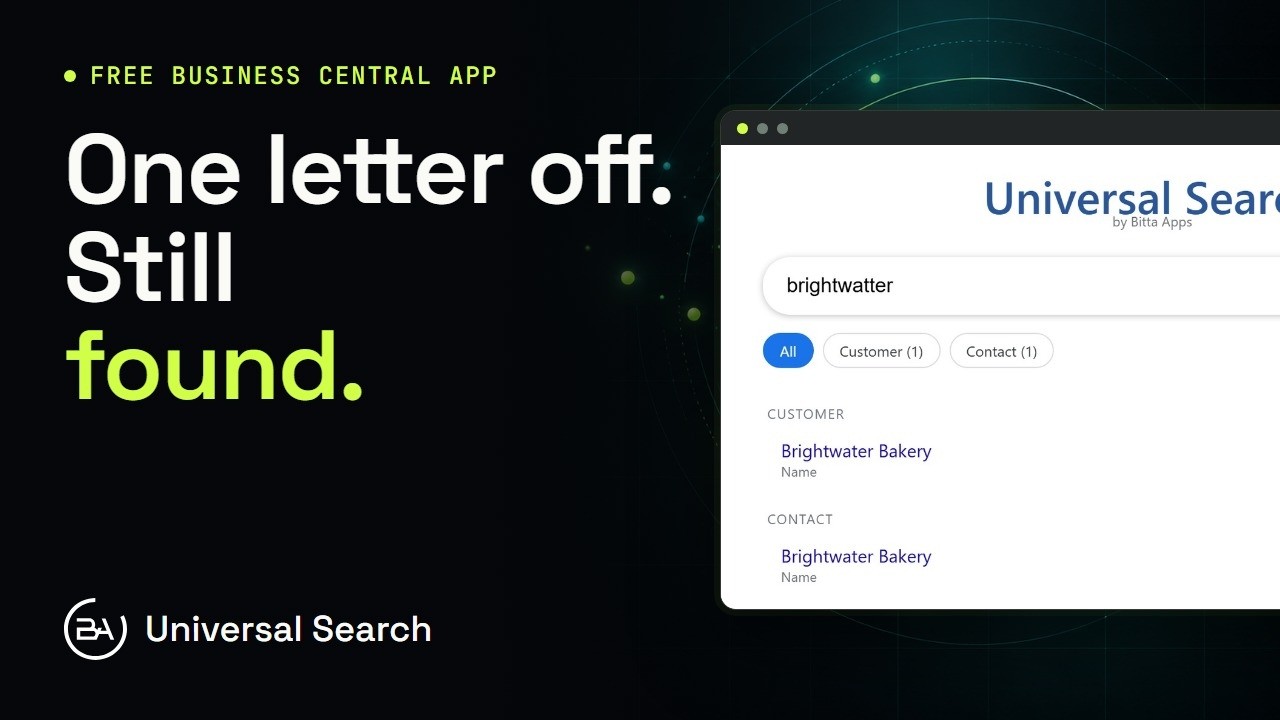
And a name spelled the way it sounds, carl brener, finds nobody either. Now Bitta Universal Search. Open Tell Me with Alt and Q, type Universal Search, and press Enter. One search box, across customers, vendors, items and contacts. Type brightwatter again. Back come Brightwater Mills, the vendor, and Brightwater Bakery, the customer, with their contacts. Results are grouped by table, and each one shows the field that matched.
Icecream as one word? Ice Cream, and everything else with ice cream in its name. No bold here. Bold marks only the letters you typed as they're stored, and icecream never appears as one word. Words in the wrong order. Wheel front still puts Front Wheel first. Back Wheel comes next, then the near misses further down. The closest match sits on top. Only a piece of the name? Harb pine finds Harbor and Pine Cafe, and the letters you typed show in bold. The same fragment also finds the vendor Harbor Wheel and Cycle, and its contact, in the same list. And the name the way it sounds. Carl brener finds the contact Karl Brenner. Names are indexed by how they sound, so a C where the K should be doesn't matter. Typos, spacing, word order, fragments and sound-alikes. Lena types what she remembers, and the search meets her there.
When a word is everywhere, the chips help. Cream matches items, customers, contacts and a vendor, with a live count on each chip. You can see where a word lives before you click. Choose Item, and only the items stay. Choose All to bring everything back. The keyboard works too. Arrow down to the first result, press Enter, and its card opens. Here, the vendor, Brightwater Mills. No list to filter, and no page to remember. The card is one keystroke away.
Search follows Business Central permissions. Lena signs in with her own login: she has Universal Search, but no access to vendors. The same search for cream. Items, customers and contacts are there, but no vendor records, because Lena can't open vendors. Northfield Creamery still shows as a contact, because Lena may read contacts. The vendor record behind it stays closed. Nobody finds a record through search that they couldn't open anyway. So the next time Lena says the customer's in there, she can prove it. Type it however you remember it.
That's Bitta Universal Search. Free on Microsoft Marketplace. Keep the guide open while you set it up.