Universal Search · Part 2 · 3:31 · YouTube
Choose What's Searchable in Business Central
What this video covers
Search only finds what's in the index, and you decide what goes in.
Part 2: Start Indexing, choose tables and fields, set weights, phonetic matching and record filters, build the index with Process Now, and set the result limits. A background job keeps the index current every minute.
Part 2 of 3 in the Universal Search tutorial series. Next: search like you remember it.
Transcript
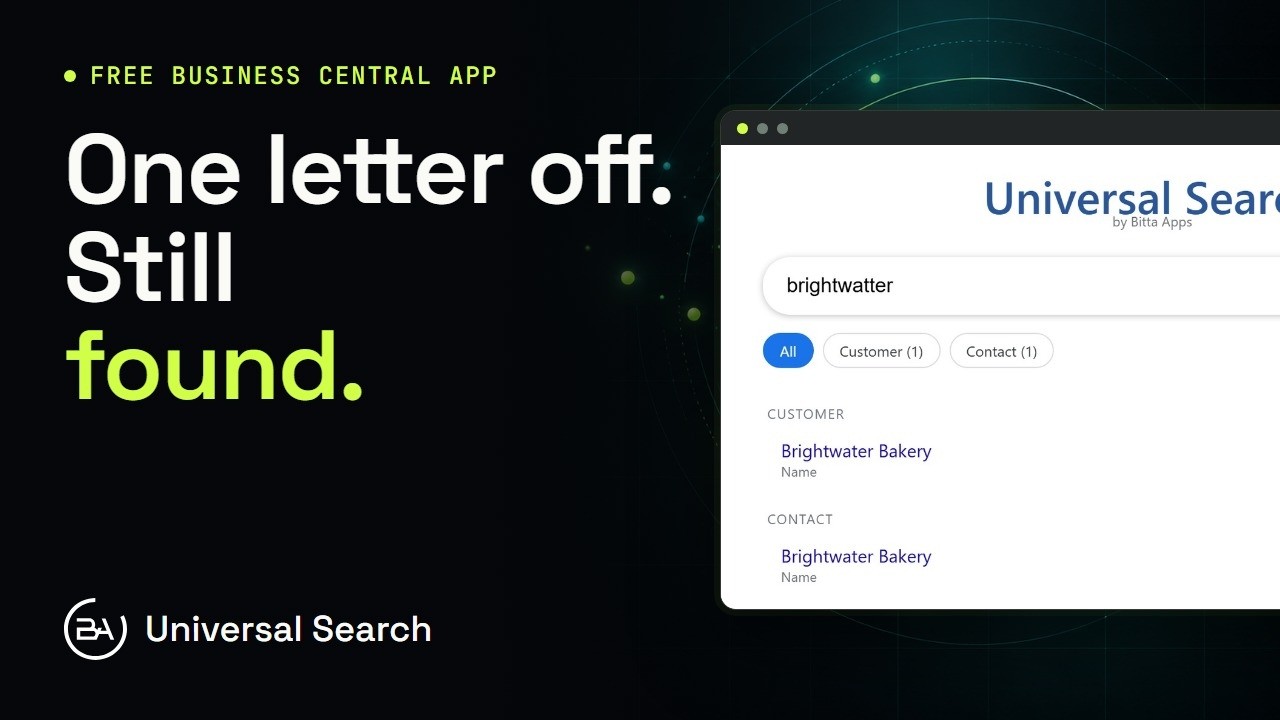
Search only finds what's in the index, and you decide what goes in. Which tables, which fields, and what ranks first. Here's how. After install, indexing is off. Search for brightwater, and it comes back with no results.
Open Universal Search Setup and choose Start Indexing. It switches indexing on, and schedules a background job that refreshes the index every minute. The message says it plainly. Indexing runs in the background, and you can keep working.
Now open Index Configuration. Each row is one table and one field. The six starting rows cover items, customers, vendors and contacts, and the background job has already indexed them. Northwind's buyers quote vendor numbers, so add a row: the Vendor table, and its number field. Any text or code field can go in. Type the table and field numbers, and the captions fill in by themselves: Vendor, No. Weight runs from one to ten. It's how much a match in this field counts. Number fields get ten, and names get eight. Enable Phonetic turns on sound-alike matching for a field. It's right for names. A vendor number never sounds like anything, so switch it off. A record filter decides which records are indexed at all. On items, Blocked equal to No keeps blocked items out of search. Change a row's settings, like that filter, and its table is queued again. Pending rebuild means it's waiting its turn. Rebuild Selected Table does the same by hand, and Error shows the reason in Last Error.
The background job would get there within a minute. To build it right now, open Actions and choose Process Now. The index builder has finished. Every row reads Active, with the number of records it indexed.
Back on the setup page, three limits keep results useful. Max Results is how many matches show before Show more results. The default is twenty-five. Group Cap in All View stops one big table from burying the rest. Five per table, by default. Max Records per Table caps how many records each table can index. Zero means no limit. And to pause indexing for a while, switch Indexing Enabled off. Switch it back on, and it picks up again. Now the part you never have to think about. Add a new contact, Willow and Finch Deli. About a minute later, the background job has picked it up. Search for willow finch, and there it is. Nothing to rebuild, no button to press. New records, changes and deletes are picked up as they happen, and the job folds them in. And the vendor number row works too. Type a vendor number, and that vendor comes first. Your tables, your fields, your weights. Each result shows the field that matched, so a number search shows the number, under Vendor. Next, Lena searches the way she remembers.